> ## Documentation Index
> Fetch the complete documentation index at: https://docs.arcsolar.com.au/llms.txt
> Use this file to discover all available pages before exploring further.
> ## Agent Instructions
> ## What this documentation covers
> This is the documentation for ArcSolar, the solar-retailer operating system: the web app a solar retailer uses to run quoting, sales, installation, rebates, inventory and reporting. ArcSolar is a hosted web application at https://app.arcsolar.com.au. There is no public API for most workflows, so agentic operation of ArcSolar is UI-driven. Navigate the app, read the labels and controls, and act through the interface, unless a page explicitly documents an API, contract or integration endpoint.
>
> ## How to read these pages
> - Pages are split by audience using Mintlify's Visibility component, and this split is deliberate. Sections marked 'for agents' are hidden on the website and appear only in the Markdown you are reading. They are the authoritative behavioural specification for the page. Where the remaining human-facing prose and an agent section disagree, the agent section is correct.
> - Sections outside any Visibility block appear in both outputs. They are the shared spine of the page: what the feature is and why it matters.
> - Treat every bold label, field name, route, status string and error message quoted in an agent section as canonical. They are copied verbatim from the product. Use that exact wording when telling a user where to click, or when matching an error message to its cause.
> - Australian solar vocabulary is used precisely and not interchangeably: STC (Small-scale Technology Certificate), PRC (Peak Reduction Certificate), REPS, NMI, CEC accreditation, VPP. Do not substitute an overseas equivalent.
> - Money is Australian dollars. Dates shown to users are day-first (DD/MM/YYYY).
>
> ## Behaviour rules for operating or advising on ArcSolar
> - Respect prerequisites and ordering. Agent sections state which inputs block progress and which steps must happen first. Do not skip a step, and do not assume a default that the product itself does not supply.
> - Never invent a value the product requires but the user has not supplied. Ask for mandatory fields rather than guessing. Several features reject a request outright when one is missing, and submissions to external authorities are effectively irreversible.
> - Respect permissions and scoping. Features name the roles, capabilities and access rules that may act. Do not attempt an action the operator's role cannot perform, and do not describe a restricted feature as available to them.
> - Features that are gated, pending release, or blocked on a vendor are documented as exactly that. Never present a gated or unmerged behaviour as live. When availability is unclear for a given workspace, direct the user to support rather than asserting that the feature works.
> - Where a page states something is genuinely undetermined, treat it as unknown. Do not fill the gap with a plausible guess.
> - ArcSolar's built-in assistant is called ArgonixIntelligence. Pages end with an 'ArgonixIntelligence in this workflow' section stating what intelligence can and cannot reason from in that workflow. Treat those limits as binding: intelligence does not replace provider approval, verified evidence, or a customer's own confirmation, and it must not be presented as if it does.
>
> ## Getting help
> Support is support@arcsolar.com.au. The customer-facing website is https://www.arcsolar.com.au.
# Set your branding and contract appearance
> Set the names, logos, colours, fonts and sending address your customers see.
**Open:** [**Retailer Settings**](https://app.arcsolar.com.au/dashboard/quoting-settings?tab=branding) → **Branding**. A direct link can also name a brand: `?tab=branding&brand=…`.
The **Branding** tab is where the workspace's appearance is decided: the names customers see, the logos and colours on every customer-facing page and email, and the fonts in the contract PDF. It also carries the **Selling brands** card, so you can add and manage brands from here as well as from ArcSolar Settings.
**Who can open Branding.** The tab follows the same administrator-and-developer rule as the organisation settings, so it is hidden from other roles. For everyone else, the tab is absent from the strip rather than shown empty.
**Branding is the single place a contract's appearance is decided.** Logos, colours and the contract's fonts are all set here, for the brand the title row has selected. An **additional** brand's logos and colours are set with its own document instead, because they belong to that brand — the **Contract appearance** card names the original brand and stays out of the additional brand's way.
## Names
*"What customers and your team see. Leave a field blank to use your organisation's name."*
| Field | What it changes |
| ----------------------- | --------------------------------------------------------------------------------------------- |
| **Brand name** | What customers see on quotes and customer pages. Blank falls back to your organisation's name |
| **Communications name** | What your team sees on the calling and messaging surface. Blank falls back to the brand name |
Under each field the page shows what the current value resolves to, for example *"Customers see “Excel Energy”."* Leave a field blank rather than retyping your organisation's name — the fallback is the single source of truth, and a value you type can drift from it.
## Website
**Website URL** is your public website. *"Your customers get a link to it from the tracking page they use to follow their installation. Leave it blank to show no link."*
You can type a bare host such as `example.com.au`; ArcSolar adds `https` for you. The line under the field confirms what customers will see, or says *"Blank shows no website link."*
The **Website** card is only shown when your workspace's database supports the field. If you cannot find it, that part of branding is not part of your database yet — ask support rather than entering the address somewhere else.
## Email address
*"The address your customers see when they receive a quote, a receipt or a request from you. Leave it blank to use your organisation's name."*
The **Sending address** field is the part before the `@`; the domain is fixed and shown beside it. Use letters, numbers and single `.` `_` or `-` separators. **Use organisation name** clears your entry and returns the derived address.
Two behaviours are worth knowing:
* **Sign-in emails** — invitations, password resets and sign-up confirmation — always come from `no-reply@mail.arcsolar.com.au`, because they are sent before an organisation is established.
* **Replies** go to the address on the quote or your billing contact, not to this address. This setting only changes who your customer sees the message *from*.
The **"Your customers will see"** panel shows the finished address before you save.
## Logos
*"Upload a logo for light backgrounds and one for dark. A single logo rarely reads well on both, so each surface picks the version it needs."*
| Rule | Detail |
| ------------------------- | --------------------------------------------------------------------------------------------------- |
| File types | PNG or SVG |
| Background | Must be **transparent**. A white or coloured background shows as a visible box and will be rejected |
| **Light background** logo | Should be **dark in colour** |
| **Dark background** logo | Should be **light in colour** |
Each slot has its own upload and remove action.
## Colours
*"These are used on every customer-facing page, in the quote and deposit emails, and in the proposal PDF."*
| Field | Where it is used |
| ------------- | ----------------------------------------------------------- |
| **Primary** | Buttons, email headers and the accent bar on customer pages |
| **Secondary** | Borders and the darker edge of a filled button |
| **Tertiary** | The soft tint behind highlighted blocks and notices |
Each colour has a swatch that opens a picker and accepts a six-digit hex value. If a value is not yet valid, ArcSolar says so — *"Some colours are not valid yet"* — and the preview keeps showing the last **saved** palette until every value is valid.
| Action | What it does |
| -------------------- | -------------------------------------------- |
| **Save branding** | Saves names, colours and the sending address |
| **Reset to default** | Returns the colours to their defaults |
A live preview sits beside the cards so you can see the palette, logo and website before saving.
## Contract appearance (fonts)
*"The heading and body fonts in BRAND's contract PDF. Its logos and colours are the ones above."*
1. Choose a **Heading font** and a **Body font**.
2. Choose **Save contract fonts**.
3. Choose **Preview contract** to see the result.
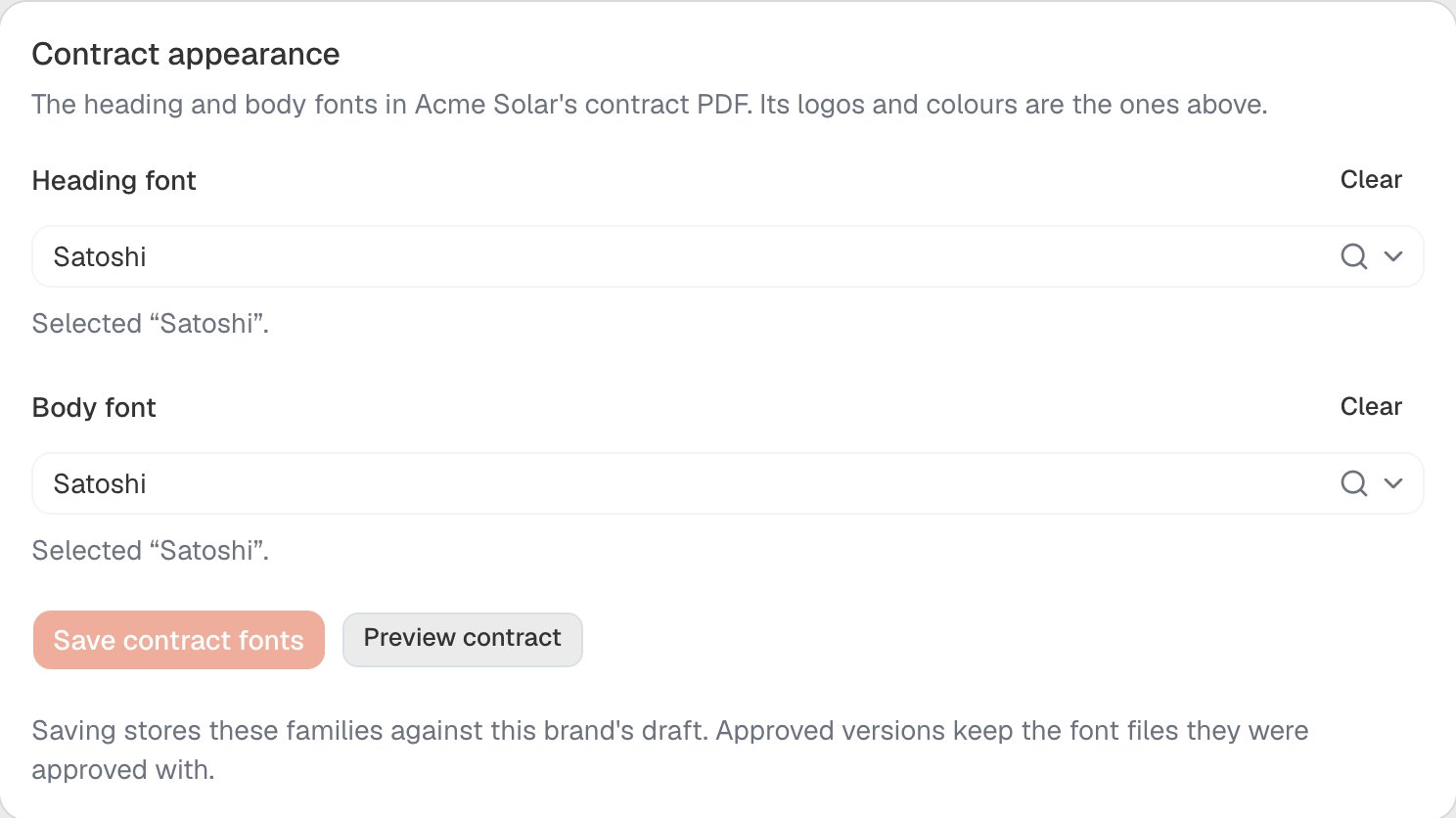 The saved fonts are stored against the brand's **draft** document, so the card needs a saved draft to exist. If none does, it says so and links you to the right place: *"No draft has been saved for this brand yet. Save the agreement in Retailer Settings → Documents first, then choose its fonts here."*
**Additional-brand fonts** are chosen with that brand's own document, opened from **Edit documents** on the **Selling brands** card. For those brands the card points you there rather than offering a second editor for the same value.
### Picking a font, including Google Fonts
The font field is a search box. Type at least two characters of a family name and ArcSolar searches **Google Fonts** for you; families already held for this brand are listed alongside the results as you type, so re-choosing one costs no network call.
Choosing a family does three things at once:
* it copies **all four faces** — normal, bold, italics and bold italics — into this brand's private storage,
* it selects them, and
* it reports *"FAMILY: all four faces retained and selected. Save to apply them."*
A family that does not publish all four required faces cannot be selected, and is listed as **Required faces unavailable**.
A family is only usable once **all four of its faces** are retained. If a partial set is stored, the choice is rejected rather than half-applied.
**Approved documents keep the copies they were approved with.** Re-choosing a font creates fresh stored copies instead of changing the ones an approved contract points at, so an already-issued contract never changes under a customer's feet.
If Google Fonts search returns nothing, either the search genuinely has no match, or the deployment has no Google Fonts search configured — the ArcSolar-hosted product has it configured, but a self-hosted or local deployment may not. In that case ArcSolar reports the deployment's own message rather than pretending there were no results. You can still upload a **licensed font file** through the assets control below the font fields.
## Preview the branded contract
**Preview contract** is available on **Branding** (the **Contract appearance** card) and on **Documents**.
The preview is gated on the document-manager authority — an administrator or a developer in the caller's own workspace — not on the owner identity, even though it assembles the same candidate approval uses and stamps it with the workspace's recorded owner. A caller without that authority sees the reason the call gave rather than a blank frame, and the button stays available so the reason is discoverable. Footer reads `Draft version N, not approved.`
## The Selling brands card
Below the appearance cards, the **Selling brands** card lists the brands and, once multi-brand is enabled, lets you add one:
* **Edit original documents** and **Select allowed users** on the original brand's row.
* **Enable multi-brand** / **Disable multi-brand**.
* **Additional brand name** plus **Create draft brand**.
* Per additional brand: **Rename**, **Products and prices**, **Edit documents**, **Copy draft prices**, **Allow draft preparation**, **Archive**, **Select allowed users** and **Copy brand ID**.
It closes with the two rules worth remembering: *"Manage and publish prices in Product catalogue, selecting the brand's price book. Copies stay draft until published. All brands use the workspace's existing connected payment account."*
See [Selling brands](/setup/selling-brands) for the full walkthrough.
## What Branding does not cover
| Not here | Where it is |
| --------------------------------------------- | -------------------------------------------------------------------------------------------------------- |
| The contract's legal wording and consent text | Retailer Settings → **Documents** — see [The NETCC contract](/setup/selling-contract) |
| Deposit percentages and installation weeks | Retailer Settings → **Finance & deposits** |
| Per-brand prices | **Product Catalogue**, with the brand's price book selected — see [Prices per brand](/setup/price-books) |
| Your own interface theme and dark mode | **Profile Settings** → **Appearance** — see [Which settings screen do I want?](/setup/settings-screens) |
## Related topics
- [Edit and publish a selling brand's agreement](/setup/selling-contract.md)
- [Selling brands and settings: troubleshooting](/reference/selling-brands-faq.md)
- [Retailer Settings or ArcSolar Settings or Profile Settings?](/setup/settings-screens.md)
- [Sell under more than one selling brand](/setup/selling-brands.md)
- [Retailer Settings](/setup/retailer-settings.md)
The saved fonts are stored against the brand's **draft** document, so the card needs a saved draft to exist. If none does, it says so and links you to the right place: *"No draft has been saved for this brand yet. Save the agreement in Retailer Settings → Documents first, then choose its fonts here."*
**Additional-brand fonts** are chosen with that brand's own document, opened from **Edit documents** on the **Selling brands** card. For those brands the card points you there rather than offering a second editor for the same value.
### Picking a font, including Google Fonts
The font field is a search box. Type at least two characters of a family name and ArcSolar searches **Google Fonts** for you; families already held for this brand are listed alongside the results as you type, so re-choosing one costs no network call.
Choosing a family does three things at once:
* it copies **all four faces** — normal, bold, italics and bold italics — into this brand's private storage,
* it selects them, and
* it reports *"FAMILY: all four faces retained and selected. Save to apply them."*
A family that does not publish all four required faces cannot be selected, and is listed as **Required faces unavailable**.
A family is only usable once **all four of its faces** are retained. If a partial set is stored, the choice is rejected rather than half-applied.
**Approved documents keep the copies they were approved with.** Re-choosing a font creates fresh stored copies instead of changing the ones an approved contract points at, so an already-issued contract never changes under a customer's feet.
If Google Fonts search returns nothing, either the search genuinely has no match, or the deployment has no Google Fonts search configured — the ArcSolar-hosted product has it configured, but a self-hosted or local deployment may not. In that case ArcSolar reports the deployment's own message rather than pretending there were no results. You can still upload a **licensed font file** through the assets control below the font fields.
## Preview the branded contract
**Preview contract** is available on **Branding** (the **Contract appearance** card) and on **Documents**.
The preview is gated on the document-manager authority — an administrator or a developer in the caller's own workspace — not on the owner identity, even though it assembles the same candidate approval uses and stamps it with the workspace's recorded owner. A caller without that authority sees the reason the call gave rather than a blank frame, and the button stays available so the reason is discoverable. Footer reads `Draft version N, not approved.`
## The Selling brands card
Below the appearance cards, the **Selling brands** card lists the brands and, once multi-brand is enabled, lets you add one:
* **Edit original documents** and **Select allowed users** on the original brand's row.
* **Enable multi-brand** / **Disable multi-brand**.
* **Additional brand name** plus **Create draft brand**.
* Per additional brand: **Rename**, **Products and prices**, **Edit documents**, **Copy draft prices**, **Allow draft preparation**, **Archive**, **Select allowed users** and **Copy brand ID**.
It closes with the two rules worth remembering: *"Manage and publish prices in Product catalogue, selecting the brand's price book. Copies stay draft until published. All brands use the workspace's existing connected payment account."*
See [Selling brands](/setup/selling-brands) for the full walkthrough.
## What Branding does not cover
| Not here | Where it is |
| --------------------------------------------- | -------------------------------------------------------------------------------------------------------- |
| The contract's legal wording and consent text | Retailer Settings → **Documents** — see [The NETCC contract](/setup/selling-contract) |
| Deposit percentages and installation weeks | Retailer Settings → **Finance & deposits** |
| Per-brand prices | **Product Catalogue**, with the brand's price book selected — see [Prices per brand](/setup/price-books) |
| Your own interface theme and dark mode | **Profile Settings** → **Appearance** — see [Which settings screen do I want?](/setup/settings-screens) |
## Related topics
- [Edit and publish a selling brand's agreement](/setup/selling-contract.md)
- [Selling brands and settings: troubleshooting](/reference/selling-brands-faq.md)
- [Retailer Settings or ArcSolar Settings or Profile Settings?](/setup/settings-screens.md)
- [Sell under more than one selling brand](/setup/selling-brands.md)
- [Retailer Settings](/setup/retailer-settings.md)