

What syncs
- Only new lead intake form submissions. Existing customers are not copied.
- Rows go to a tab called ArcSolar Leads, which ArcSolar creates if it is missing.
- Columns: Submission ID, Submitted at (UTC), Customer name, Email, Phone, Lead source, Sales agent, Address, Ideal meeting (UTC), Preferred days, Preferred times, Document, ArcSolar customer reference.
- Sync goes one way, from ArcSolar to the Sheet. Edit customers in ArcSolar, not in the Sheet.
Connect a Sheet
1
Create a dedicated Sheet
Make a new Google Sheet just for leads. It will hold customer contact details. Keep General access set to Restricted.
2
Open the connection form
Open Retailer Settings → Integrations → Google Sheets and select Sync to Google Sheets.
3
Paste the Sheet link
Paste the Sheet’s address into Google Sheet URL.
4
Share the Sheet with ArcSolar
Select Copy ArcSolar email, then Open Sheet to share. In Google Sheets, select Share, add the copied address as an Editor, and send. Share the file only, not its folder.
5
Connect
Back in ArcSolar, select Connect sheet. The status changes to Connected.
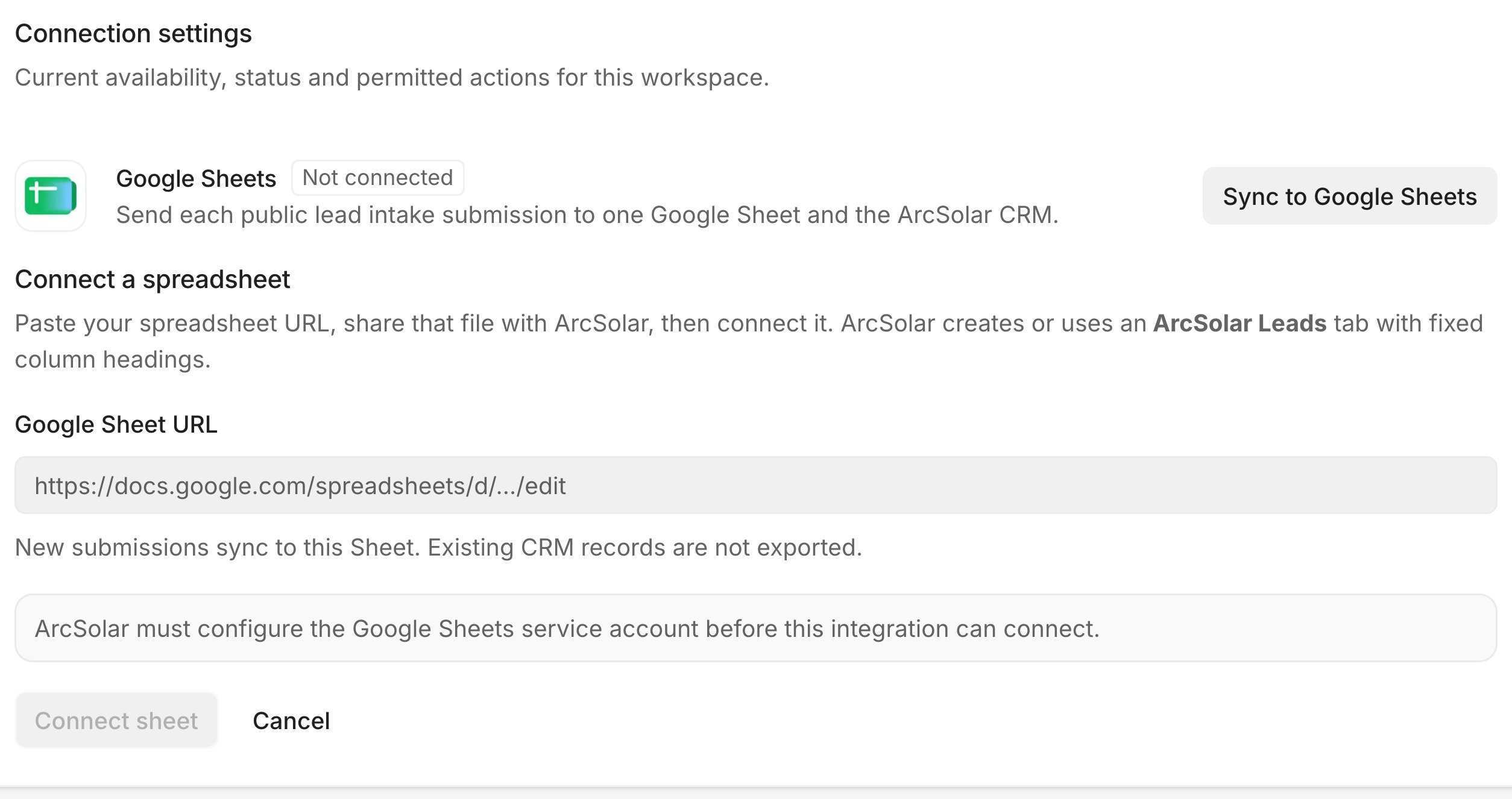
The Connect a spreadsheet form. In the sample workspace the sharing address is not shown.
Change or disconnect
- Change Google Sheet connects a different Sheet. Remove ArcSolar from the old Sheet’s sharing to revoke its access.
- Open connected Sheet opens the current Sheet.
- Disconnect stops sync. New leads still go into Customers. Rows already in the Sheet stay there. Remove ArcSolar’s email from the Sheet’s sharing to fully revoke access.