

Activity you can scan
Customer and project activity now reads like a timeline: who did what, when, and one click to the detail.What’s new
- See who did it. Each row shows the person’s avatar and name, then what they did.
- Wins and money stand out. An accepted quote is green with its quote number. Deposits and payments are blue with the amount.
- Logos you recognise. Rebate updates show the rebate provider, and grid connection steps show the network.
- Open what you see. Click a deposit to open the project’s financials, an accepted quote to open its project, a rebate update to open the rebate tab, or a call to see its summary, recording and transcript.
Grid connections for every workspace
- On by default. Every project has a Grid Connection tab. Skip it for jobs that don’t need a network application.
- Click to fix what’s missing. Each item in the checklist takes you to the field that completes it.
- Network and retailer on each property. The network comes from the NMI, or pick it yourself. Choose the retailer from a list of 42, with their logos.
Grid connections, ready to lodge
Lodge a grid connection application without retyping the job. ArcSolar works out the network from the NMI and lines up everything its portal asks for.What’s new
- The network, from the NMI. Enter the NMI and ArcSolar picks the distribution network, from Ausgrid and Energex to Western Power and TasNetworks. You’re warned if the NMI doesn’t match the property’s state.
- Lodge with your network. Open the network’s portal from the project, then copy each value across: NMI, address, applicant, panels, inverter kW and kVA, battery size and power, and the export limit.
- Files ready to upload. Copy or download the single line diagram, customer permission and site photos straight from the application.
- Fill gaps in place. Add a missing inverter kVA or battery charge rate without leaving the application.
Several properties per customer
- Add properties to a customer. A home, a rental or a holiday house, each with its own address, NMI, electricity retailer and quarterly bill.
- Quote the right property. Choose the property in the quote. When the customer accepts, the project is set up at that property.
- Bills fill the property. An accepted electricity bill fills in that property’s NMI and retailer when they’re blank.
Sales managers
Give the people who run your sales team their own role. A sales manager works their own customers and the customers of the sales reps you approve for them, and nothing else.What’s new
- A Sales manager role. Invite someone as Sales manager or change an existing member’s role in Team & Access.
- Approved sales reps. Choose which reps each manager looks after when you invite them, or later on their profile. Only Administrators can change approvals.
- The whole customer history. Managers see their team’s customers, quotes, tasks, appointments and full call history, and can work them like a rep.
- Team reporting. Reporting shows team totals and a row for each rep: new customers, open opportunities, quotes sent, accepted sales and calls, for the last 30 days, quarter or 12 months.
- Customer payments, read only. Projects show each invoice’s amount, what’s been paid and what’s outstanding.
Meet ArcAgents
Get answers and get work done from one conversation. Open Agent in ArcSolar and tell it what you need.Complimentary free trial during betaWhat you can do
- Find the next step. Ask about a customer, job, task, page or setting.
- Get clear reports. Use Insight Cards and charts, then open the records behind the figures.
- Review and act. Create leads, prepare quotes, set follow-ups and complete supported tasks.
- Bring in the right context. Use @ to mention records, team members, installers and roles.
- Manage permitted changes. Review an action before it runs, with your existing workspace permissions.
Quote air conditioning, hot water and EV chargers
ArcSolar now quotes the rest of the electrified home. Add air conditioning, a hot water heat pump or an EV charger to any quote, on its own or alongside solar and battery.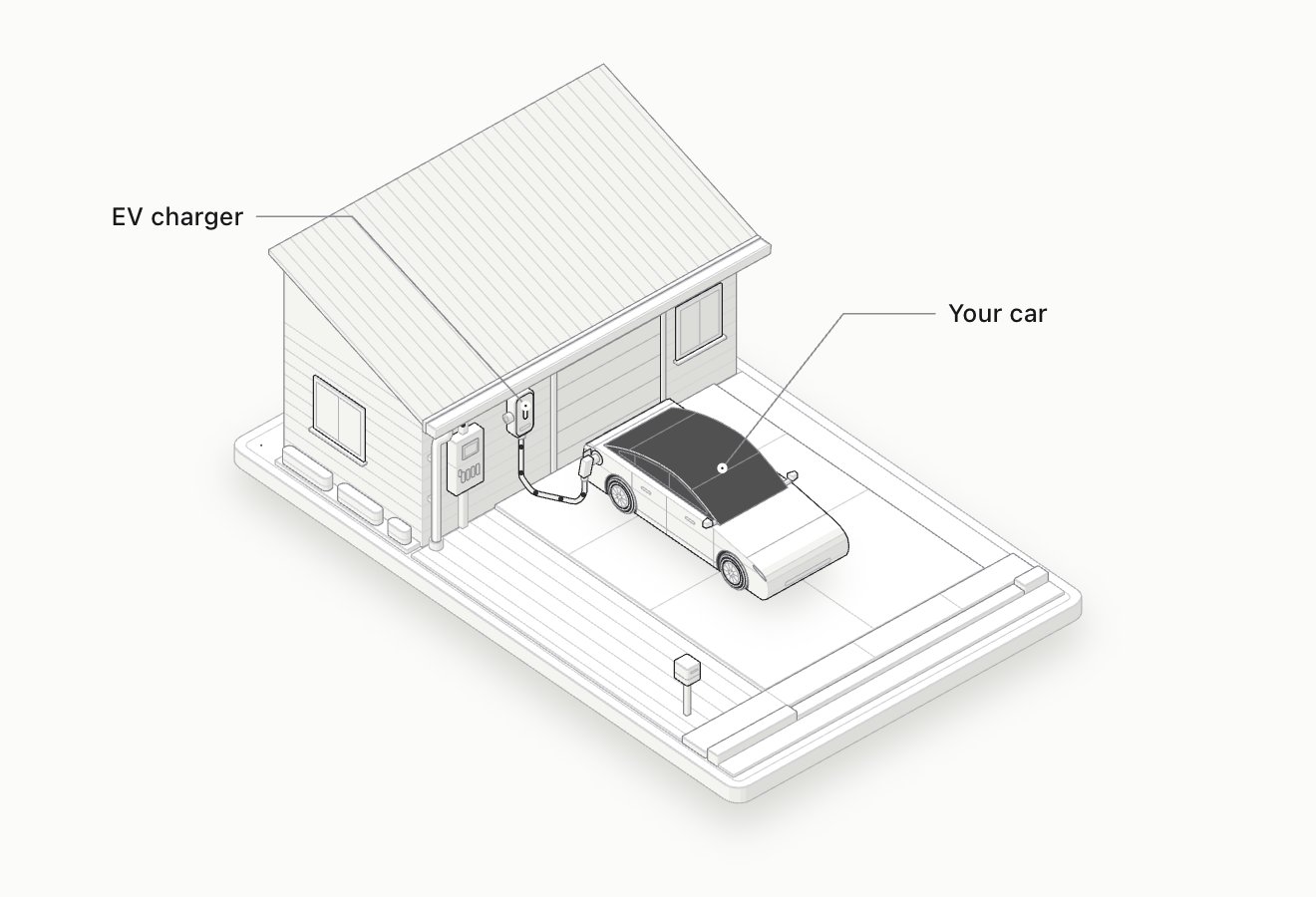
Customers see how their new equipment works, shown here for an EV charger.
What’s new
- Three new services. Choose Air conditioning, Hot water or EV charger in the Services step. Each has its own short step for products, quantity and installation.
- A faster product picker. Search your catalogue by name, brand or model and add a product in one step. Specs show when your catalogue has them, and missing details never stop you quoting.
- Rebates without the paperwork. Tick the programs that apply, such as Victorian Energy Upgrades or Solar Victoria hot water. Sending the quote confirms the listed eligibility requirements, so there is no checklist to tick.
- Estimates that explain the system. Your customer’s estimate shows an illustration of their air conditioning, EV charger or hot water system, with the key specifications.
- EV chargers are their own product. Quote an EV charger as a service rather than as an extra on a battery quote.
- New catalogue categories. Add air conditioners, hot water heat pumps and EV chargers to your Product catalogue with their own pricing terms.
ArcSolar v2 is here
ArcSolar v2 brings a cleaner, more focused workspace to your everyday work. From the first enquiry to installation, the next action is easier to find and the details are there when you need them.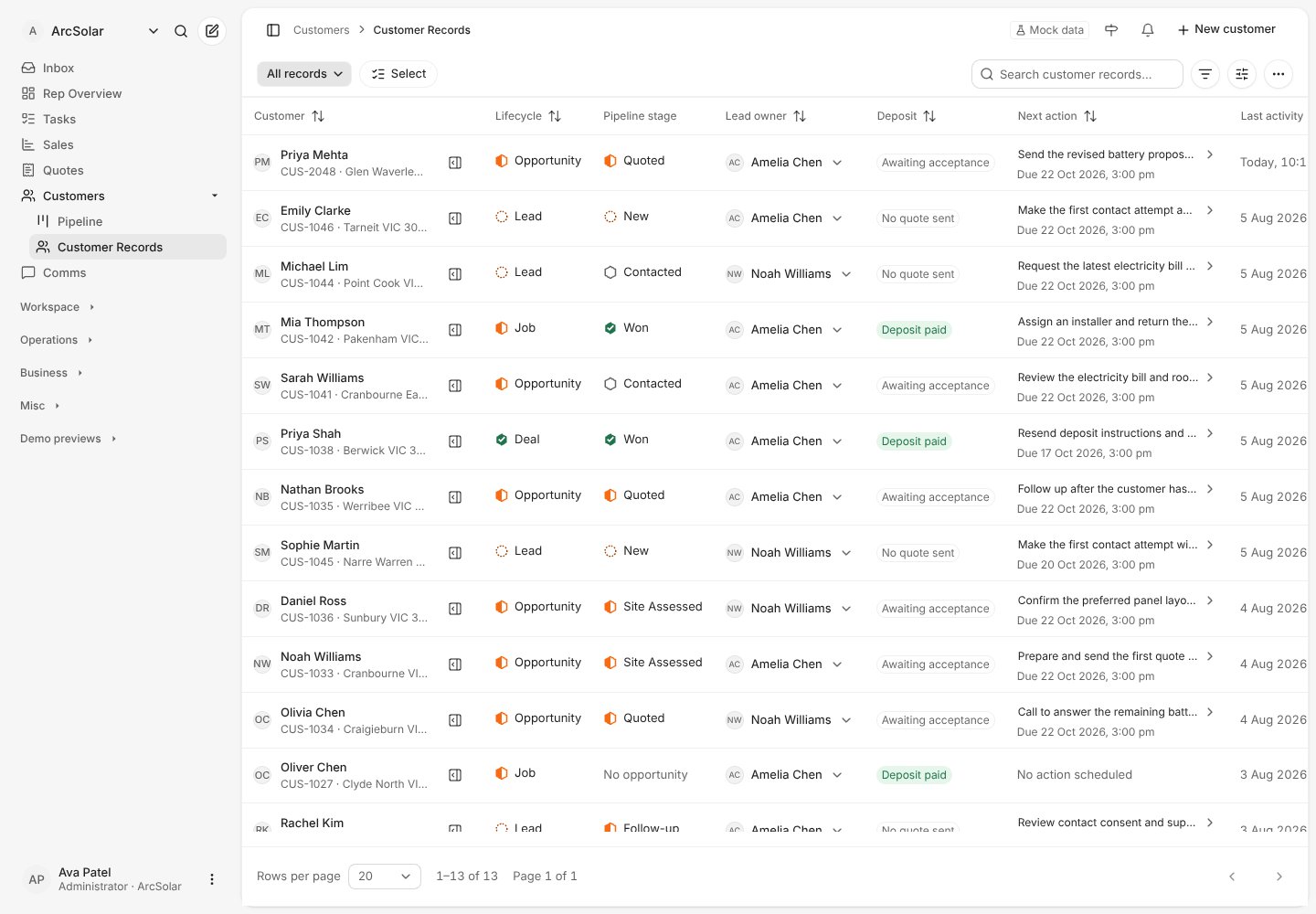
The ArcSolar v2 customer register, shown with fictional demo records.
What’s new
- A clearer workspace. Compact customer lists, pipeline boards and project views put the customer and next action first.
- More direct navigation. Search the workspace, move between pages with keyboard shortcuts and choose your own start page.
- Files and financials together. Find project documents and review balances, deposits and payment history from the project.
- Portals made for the job. Customers can review their quote, follow installation progress and provide site information. Technicians get a focused view of their assigned work and files.
- A lighter introduction. A short welcome covers appearance, search and optional team and rebate setup. Required business configuration stays available through the setup checklist.
- Appearance that follows you. Choose your interface theme and contrast in account preferences.