

Get the link
- Open Customers → Customer Records or Customers → Pipeline.
- Select Copy lead intake form page at the top of the page. If you can’t see it, open the … menu and select Copy lead intake form link.
- Paste the link wherever you need it.
What the form asks for
The form shows your logo and company name.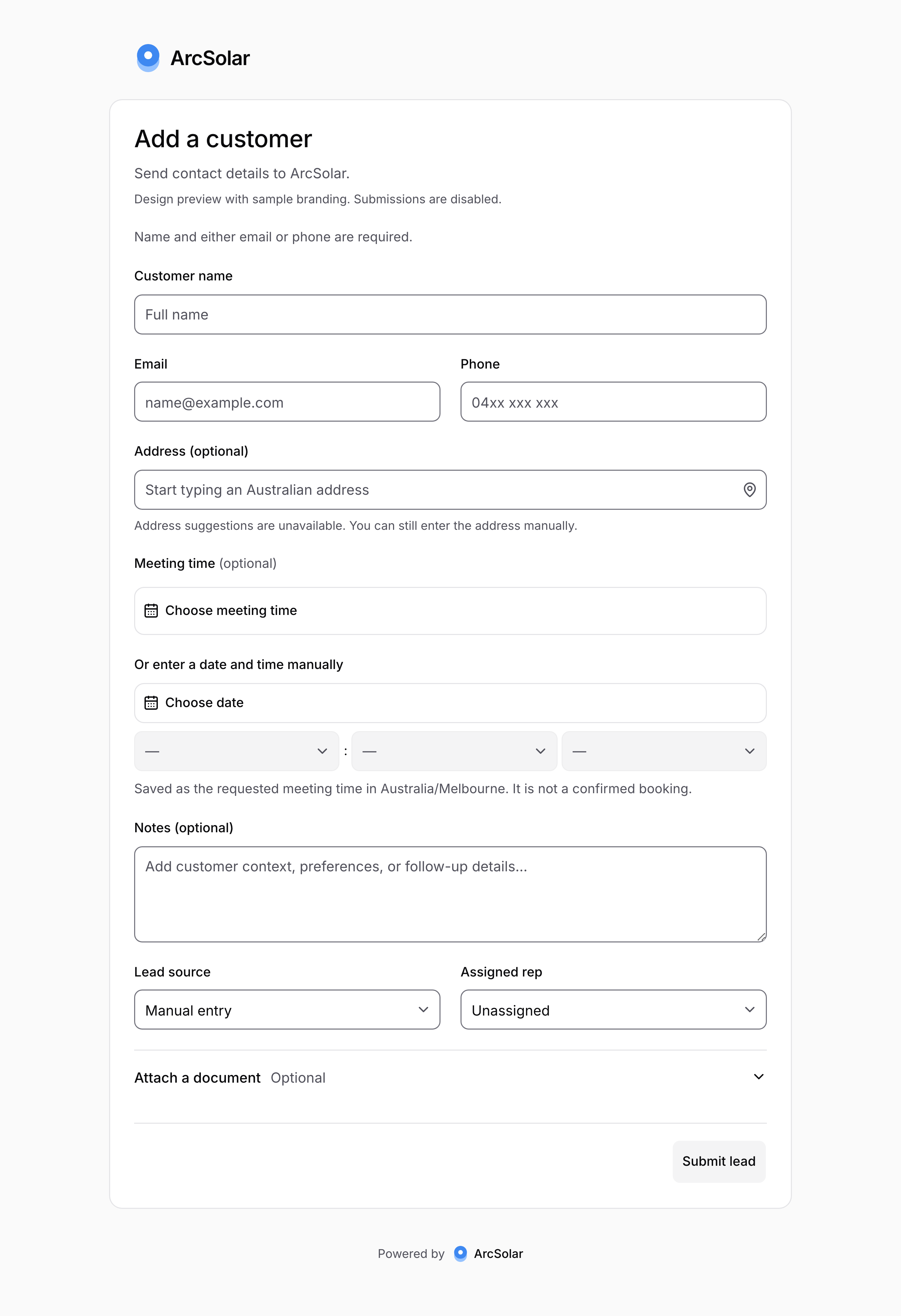
The intake form. This sample uses demo branding.
Select Submit lead. The person sees Lead submitted and can select Submit another lead.
Book a meeting
There are two ways to add a meeting:- Choose meeting time opens your team’s live calendar. Pick a Meeting type, select a free block, then Use this time. This books the appointment for the rep. Other appointments only show as Busy.
- Or enter a date and time manually saves a requested time only. It is not a confirmed booking. Your team still needs to confirm it.
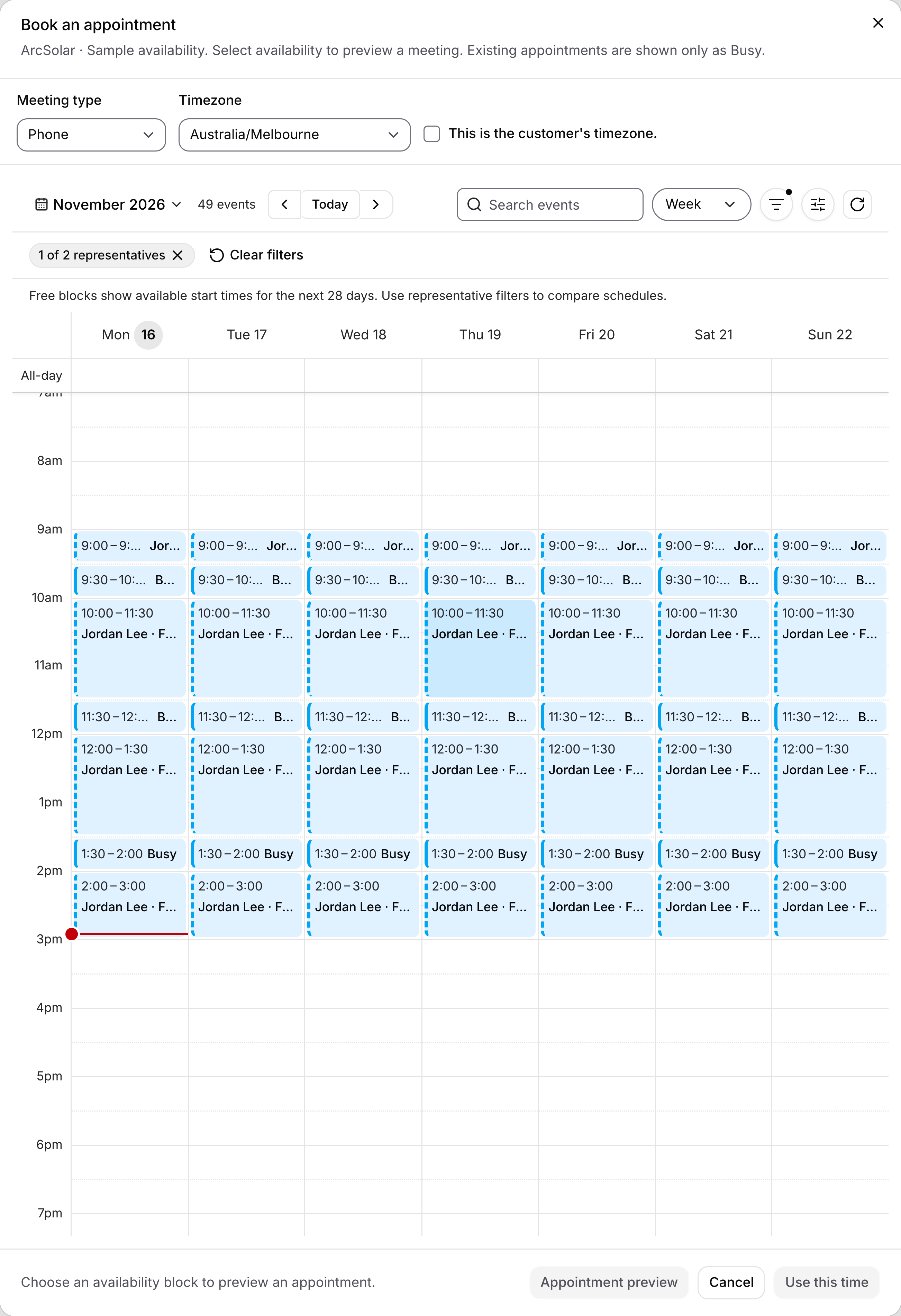
Book an appointment. Free blocks show start times for the next 28 days. Sample data.
Duplicates
If the email or phone already belongs to a customer, the form does not create a new lead. It shows a message asking them to contact your team. Update the existing record instead.Send leads to Google Sheets
You can copy every new form lead into a Google Sheet.- Open Retailer Settings → Integrations and find Google Sheets.
- Select Sync to Google Sheets and paste your Google Sheet URL.
- Share the sheet with ArcSolar as an Editor, using the address shown.
Keep it safe
- Anyone with the link can add leads. Only share it with people you trust.
- If the link is shared too widely, contact support to turn it off.