

Finance and External marketing users see a read-only view without Automation log or Bulk SMS.
Find a conversation
The left sidebar sorts conversations into mailboxes:- Inbox: conversations to work on
- Mentions: notes where a teammate tagged you
- Snoozed: conversations hidden until a set time
- Sent by me: conversations you have messaged
- Automated conversations: threads with automatic messages
- All conversations, Unassigned and Spam
Reply to a customer
1
Open the conversation
Read the latest messages, calls and notes first. The right panel shows the customer’s details and a link to their record.
2
Assign it to yourself if needed
If the box says Assign yourself to reply, the conversation belongs to someone else. Ask a manager to assign it to you.
3
Write and send
Stay on the Reply tab, type your message and select Send.
4
Check the status
Each message shows its status, such as Delivered. Failed messages show Delivery failed.
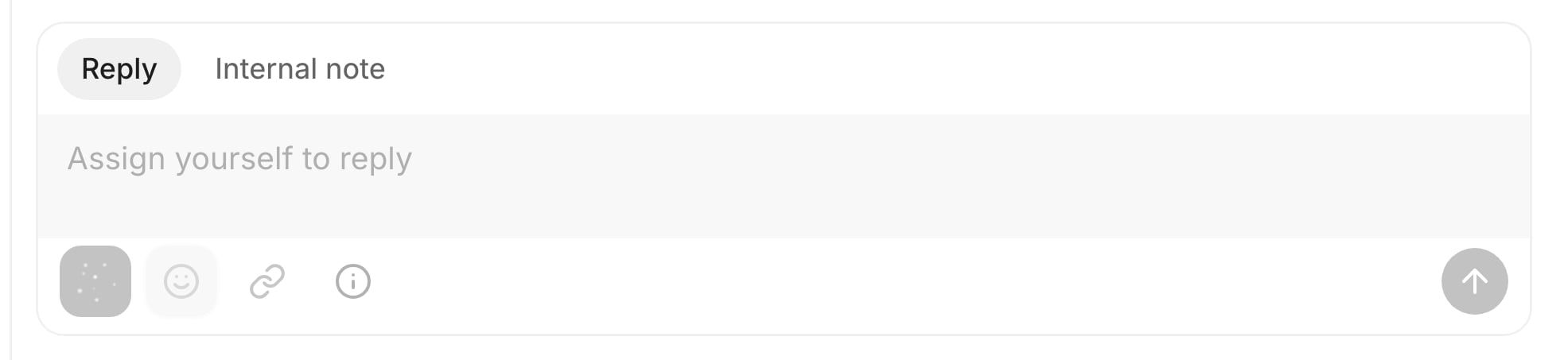
The reply box, with Reply and Internal note tabs. Sample data.
Leave an internal note
Select the Internal note tab, write your note and send it. Notes are visible to your team, never the customer. Mention a teammate to notify them. They see it in Mentions and in their Inbox.Manage a conversation
Select Conversation actions at the top of the thread.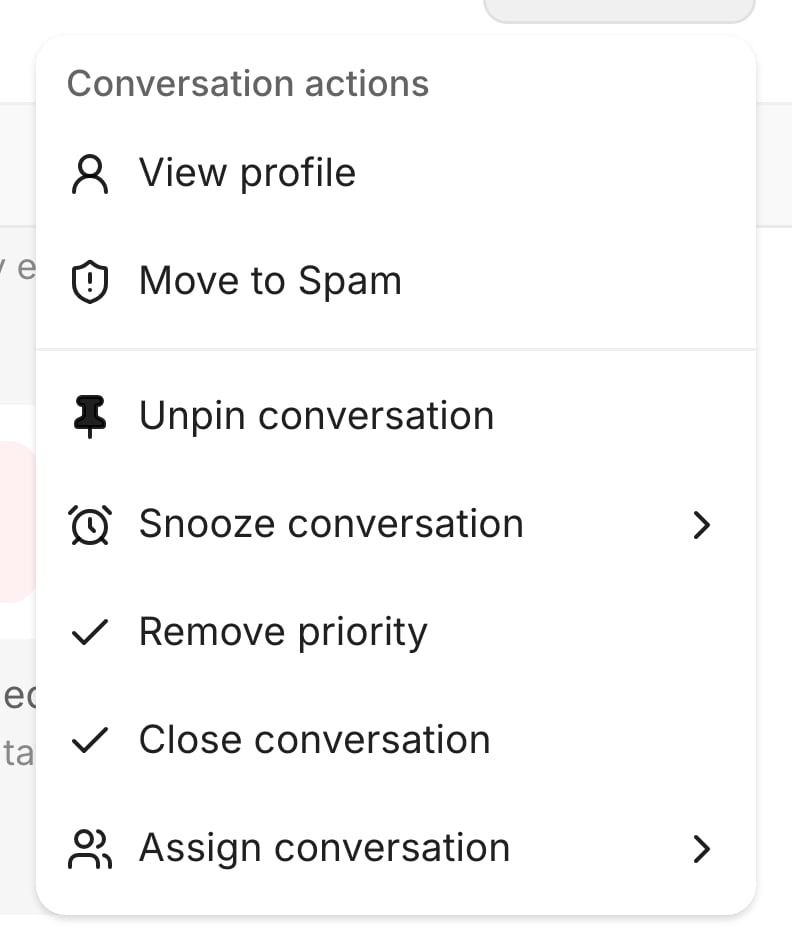
Conversation actions. Sample data.
Snoozing, closing, priority, spam and assigning are for Administrators and Operations.
Start a new conversation
- Select New message at the top of Comms.
- Search for the client name or phone number, or type an Australian mobile number.
- Choose the From line if you have more than one. Pick it before you write, because replies always use the conversation’s original number.
- Write your message and send it.
Send a bulk SMS
1
Open Bulk SMS
Select the Bulk SMS tab. Your leads are listed under Recipients.
2
Choose who gets it
Use Filters to narrow by Sales rep, Status, Purchased or Lead source. Tick customers, or select Select all.
3
Write the message
Type it under Message (up to 1,600 characters). The recipient count updates as you select.
4
Send
Select Send SMS, check the message in the confirmation, then select Send SMS again.
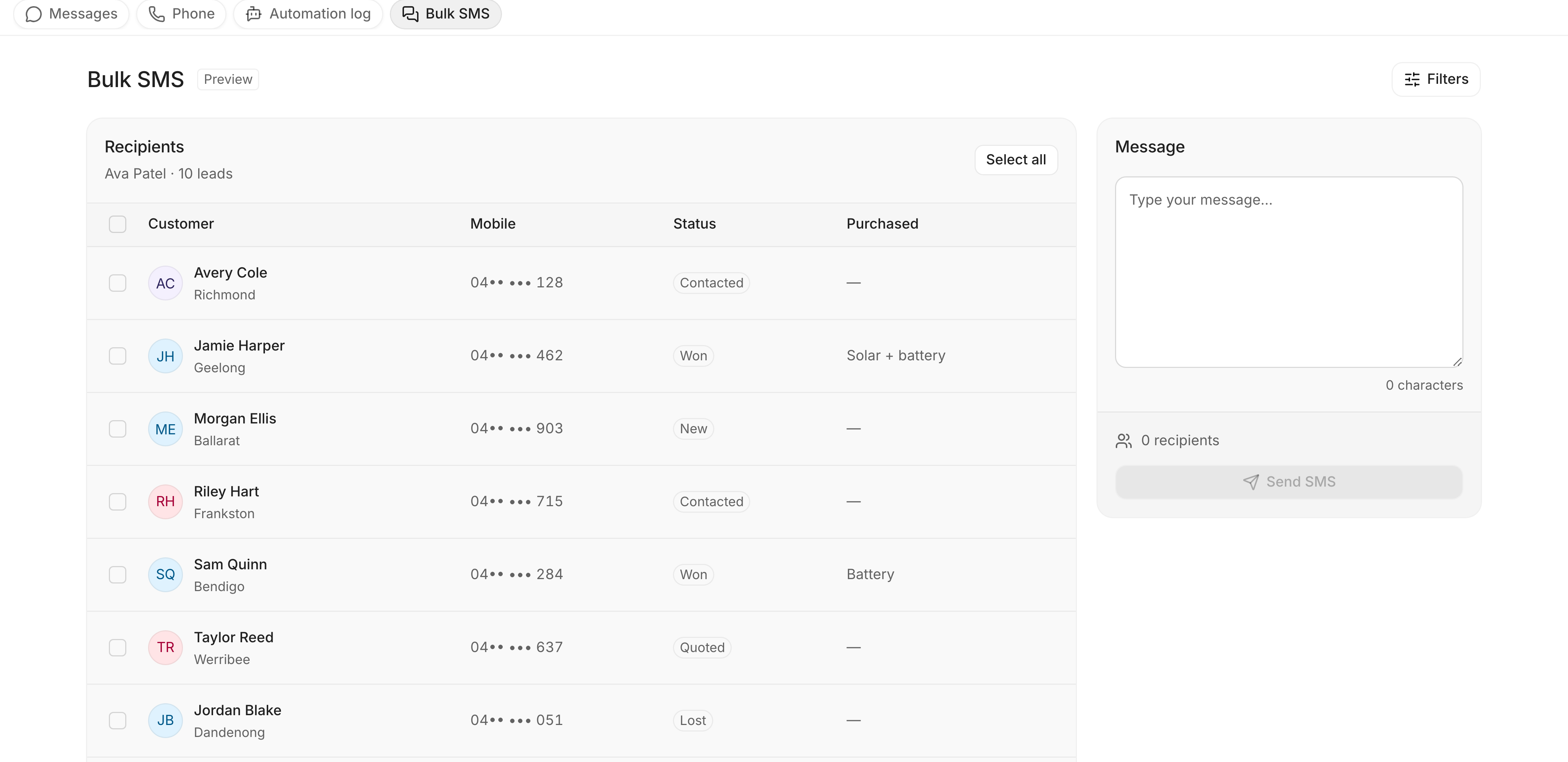
Bulk SMS. Sample data.