

The Inbox is for alerts. Customer text messages live in Comms.
What lands in your Inbox
Work through it
1
Start with Priority
The Priority tab shows items that still need action. Other holds the rest.
2
Open an item
Select it to see the details on the right, such as the customer, task and due date.
3
Act on it
Use the buttons in the details panel, such as Open task, View customer or Open Comms.
4
Clear it
Select Mark as read, or dismiss it on this device.
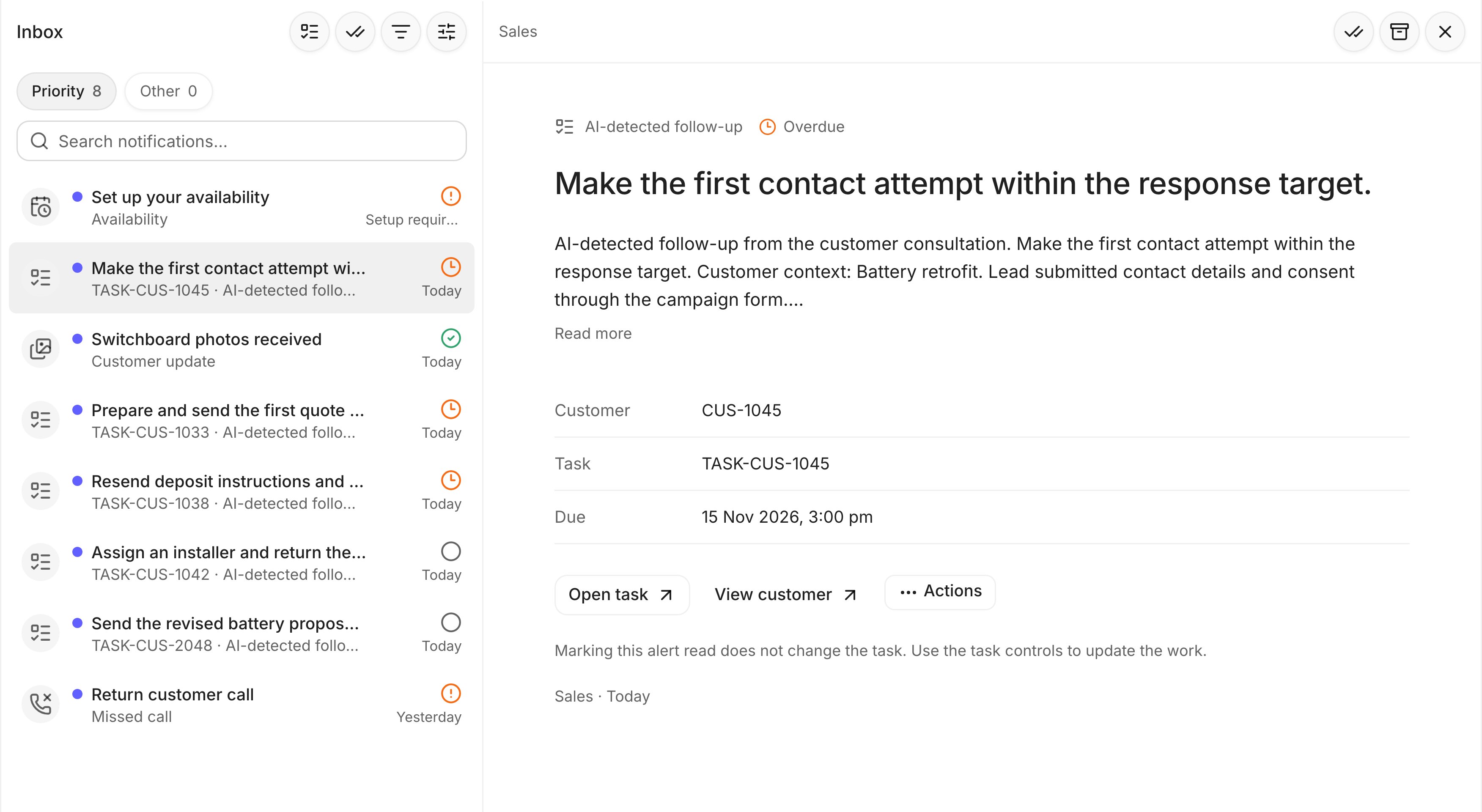
A task alert open in the Inbox. Sample data.
Find and sort alerts
- Search notifications finds an alert by its text.
- Filter notifications filters by Notification type, Work area (Comms, Finance, Operations, Reporting, Sales) or Unread alerts only.
- Inbox display options groups by type or work area, and sorts Newest first or Oldest first.
- Mark shown notifications read clears every alert in view. Tasks stay open.