

Start an application
- Open the project in Projects & Jobs.
- Open Grid Connection (under More if it isn’t shown).
- Choose Start application.
Prepare the application
Prepare application has three steps.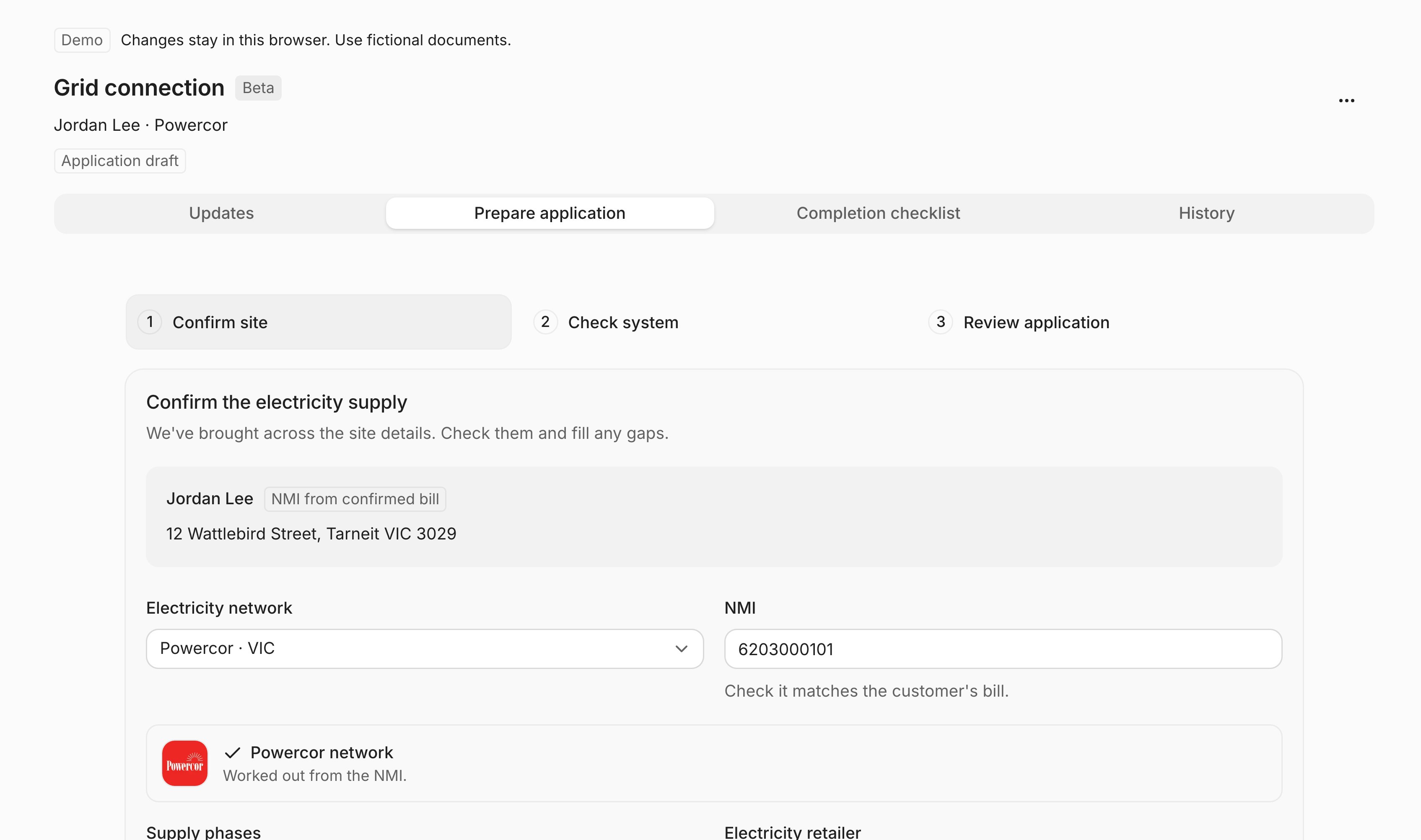
Step 1 confirms the supply. The network is worked out from the NMI. Sample data.
1
Confirm site
Check the supply address. Enter the NMI from the customer’s bill; ArcSolar picks the Electricity network. You can also choose the network yourself. Choose the Supply phases and Electricity retailer, tick I’ve checked this is the correct supply point, then choose Save and continue.
2
Check system
Check the system you’re connecting. Choose Use the system already designed to bring in the accepted design, or add the equipment. Fill any gaps, such as a missing inverter kVA or battery charge rate. Set the Requested export, for example No export (0 kW) or Fixed export limit.
3
Review application
Attach the customer’s signed permission and tick I’ve reviewed the customer’s permission for this application. Add the reviewed single line diagram. You can reuse the diagram from the Roof Vision design. Check everything, then save.
Fix what’s missing
Updates shows the Next action and a Before you can lodge list. Select an item to go straight to the field that completes it.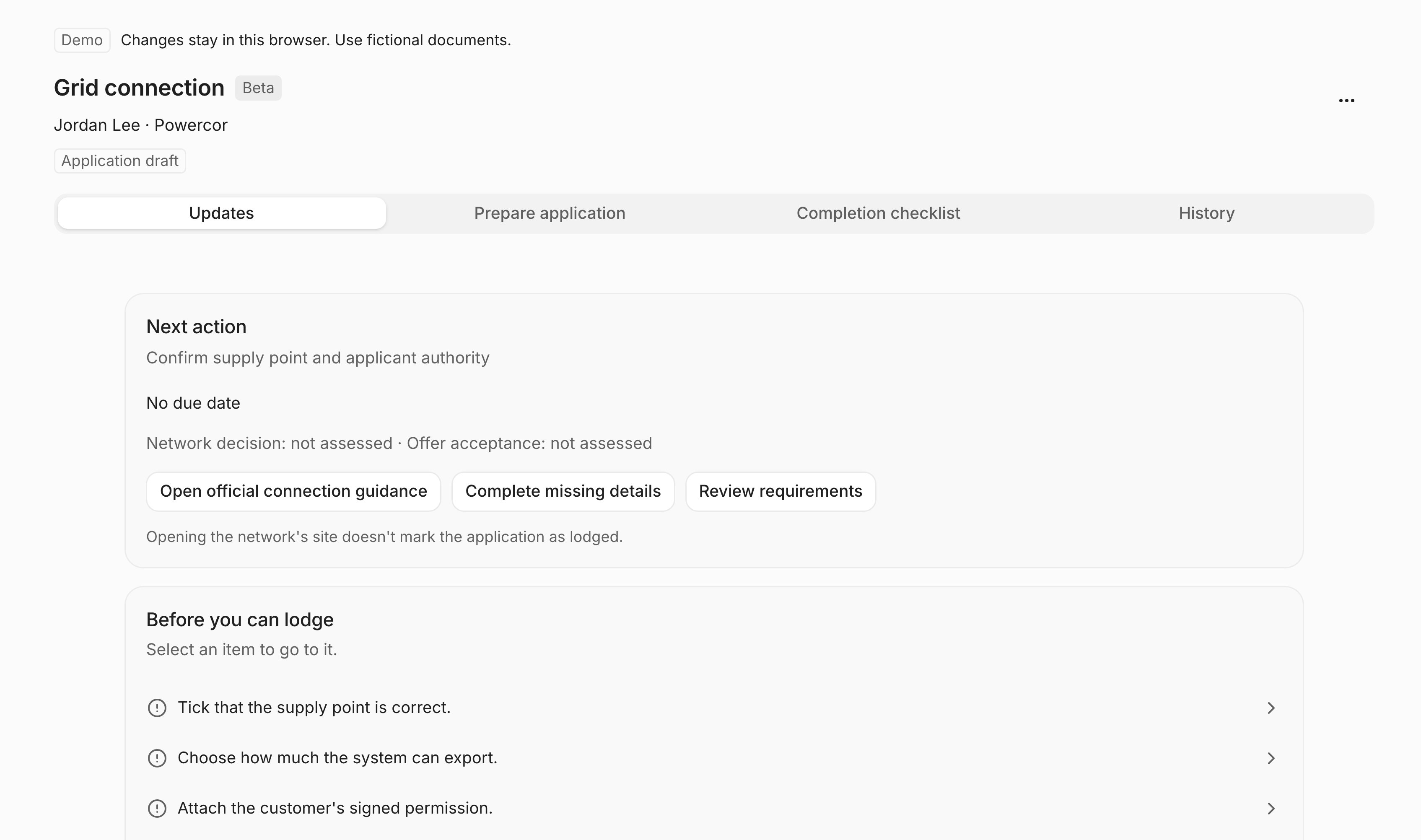
Before you can lodge lists what the network will still need. Select an item to fix it. Sample data.
Lodge with the network
When the application is ready, the Lodge with card shows the network’s name.- Choose the Open button on the card to go to the network’s portal.
- Copy each value across with its copy button, or use Copy all. Values include the NMI, address, applicant, panels, inverter kW and kVA, battery size and power, and the export limit.
- Under Files to upload, copy or download the single line diagram, customer permission and site photos.
- Submit in the network’s portal and keep its receipt.
- Back in ArcSolar, choose Record submission or decision and record the submission with its reference and receipt.
Record the network’s response
- On Updates, choose Record a network update.
- Record the response: approval, conditions or a request for more information.
- Attach the network’s decision document and note the approved export limit.
Close out the connection
Completion checklist tracks each outcome on its own: authority, design, conditions, certificate, inspection, metering, commissioning and DER registration.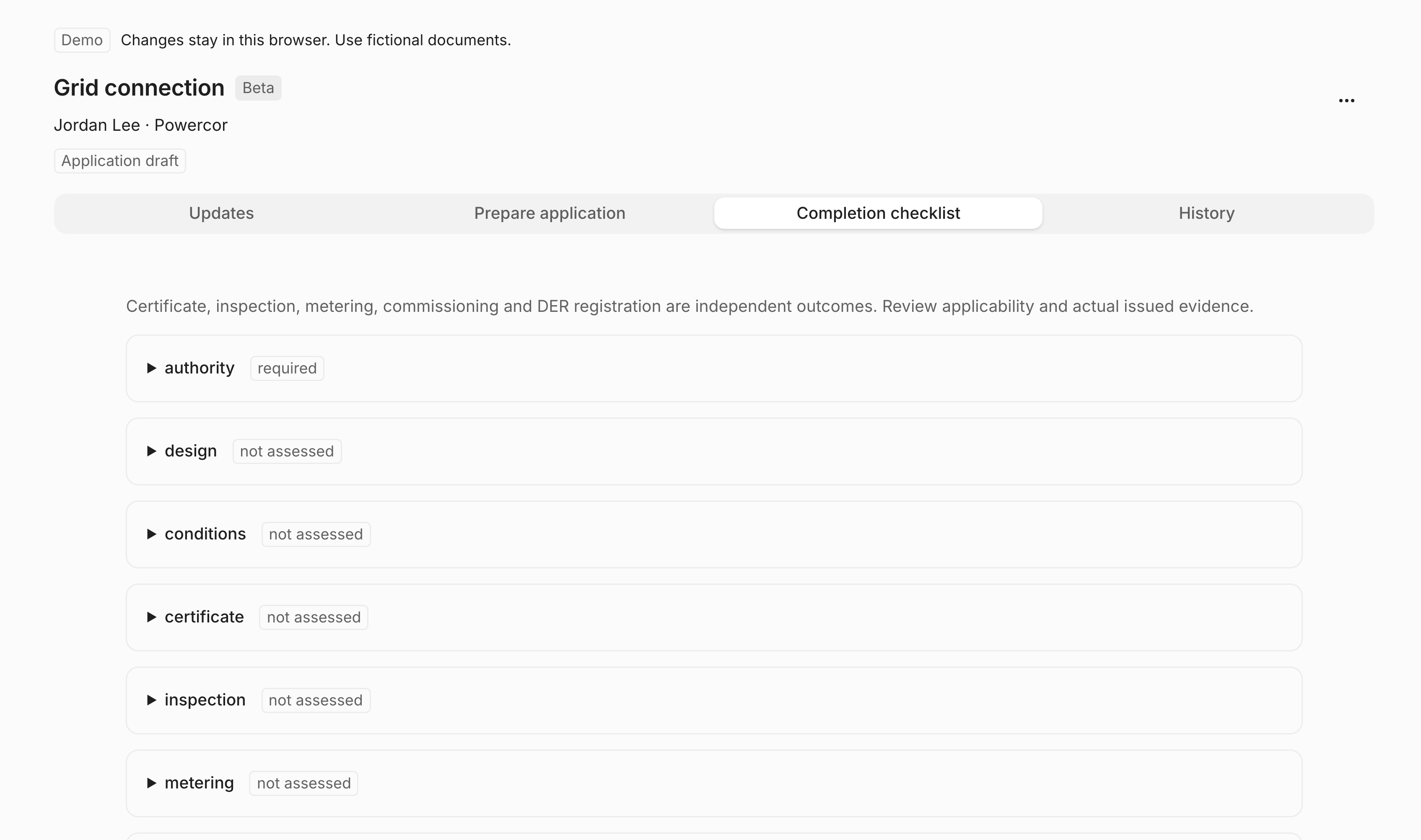
Each completion item is tracked separately. Sample data.
- Use Attach a document to add evidence from Project Files, with its Document type and who issued it.
- Choose Record the installed system once installed.
- Choose Mark as complete.
Find projects that need action
On Projects & Jobs, choose Grid attention to show only projects whose grid connection needs action. Choose Show all projects to clear it.Properties, NMIs and retailers
A customer can have several properties, each with its own address, NMI, retailer and bill. The project is set up at the property chosen in the quote. An accepted electricity bill fills in a property’s NMI and retailer when they’re blank.Grid approval, metering and commissioning are separate from the project stage. Set Review operations clearance on the project as each one is done. See Projects and jobs.