

?tab=branding&brand=….
The Branding tab is where the workspace’s appearance is decided: the names customers see, the logos and colours on every customer-facing page and email, and the fonts in the contract PDF. It also carries the Selling brands card, so you can add and manage brands from here as well as from ArcSolar Settings.
Who can open Branding. The tab follows the same administrator-and-developer rule as the organisation settings, so it is hidden from other roles. For everyone else, the tab is absent from the strip rather than shown empty.
Branding is the single place a contract’s appearance is decided. Logos, colours and the contract’s fonts are all set here, for the brand the title row has selected. An additional brand’s logos and colours are set with its own document instead, because they belong to that brand — the Contract appearance card names the original brand and stays out of the additional brand’s way.
Names
“What customers and your team see. Leave a field blank to use your organisation’s name.”
Under each field the page shows what the current value resolves to, for example “Customers see “Excel Energy”.” Leave a field blank rather than retyping your organisation’s name — the fallback is the single source of truth, and a value you type can drift from it.
Website
Website URL is your public website. “Your customers get a link to it from the tracking page they use to follow their installation. Leave it blank to show no link.” You can type a bare host such asexample.com.au; ArcSolar adds https for you. The line under the field confirms what customers will see, or says “Blank shows no website link.”
The Website card is only shown when your workspace’s database supports the field. If you cannot find it, that part of branding is not part of your database yet — ask support rather than entering the address somewhere else.
Email address
“The address your customers see when they receive a quote, a receipt or a request from you. Leave it blank to use your organisation’s name.” The Sending address field is the part before the@; the domain is fixed and shown beside it. Use letters, numbers and single . _ or - separators. Use organisation name clears your entry and returns the derived address.
Two behaviours are worth knowing:
- Sign-in emails — invitations, password resets and sign-up confirmation — always come from
no-reply@mail.arcsolar.com.au, because they are sent before an organisation is established. - Replies go to the address on the quote or your billing contact, not to this address. This setting only changes who your customer sees the message from.
Logos
“Upload a logo for light backgrounds and one for dark. A single logo rarely reads well on both, so each surface picks the version it needs.”
Each slot has its own upload and remove action.
Colours
“These are used on every customer-facing page, in the quote and deposit emails, and in the proposal PDF.”
Each colour has a swatch that opens a picker and accepts a six-digit hex value. If a value is not yet valid, ArcSolar says so — “Some colours are not valid yet” — and the preview keeps showing the last saved palette until every value is valid.
A live preview sits beside the cards so you can see the palette, logo and website before saving.
Contract appearance (fonts)
“The heading and body fonts in BRAND’s contract PDF. Its logos and colours are the ones above.”- Choose a Heading font and a Body font.
- Choose Save contract fonts.
- Choose Preview contract to see the result.
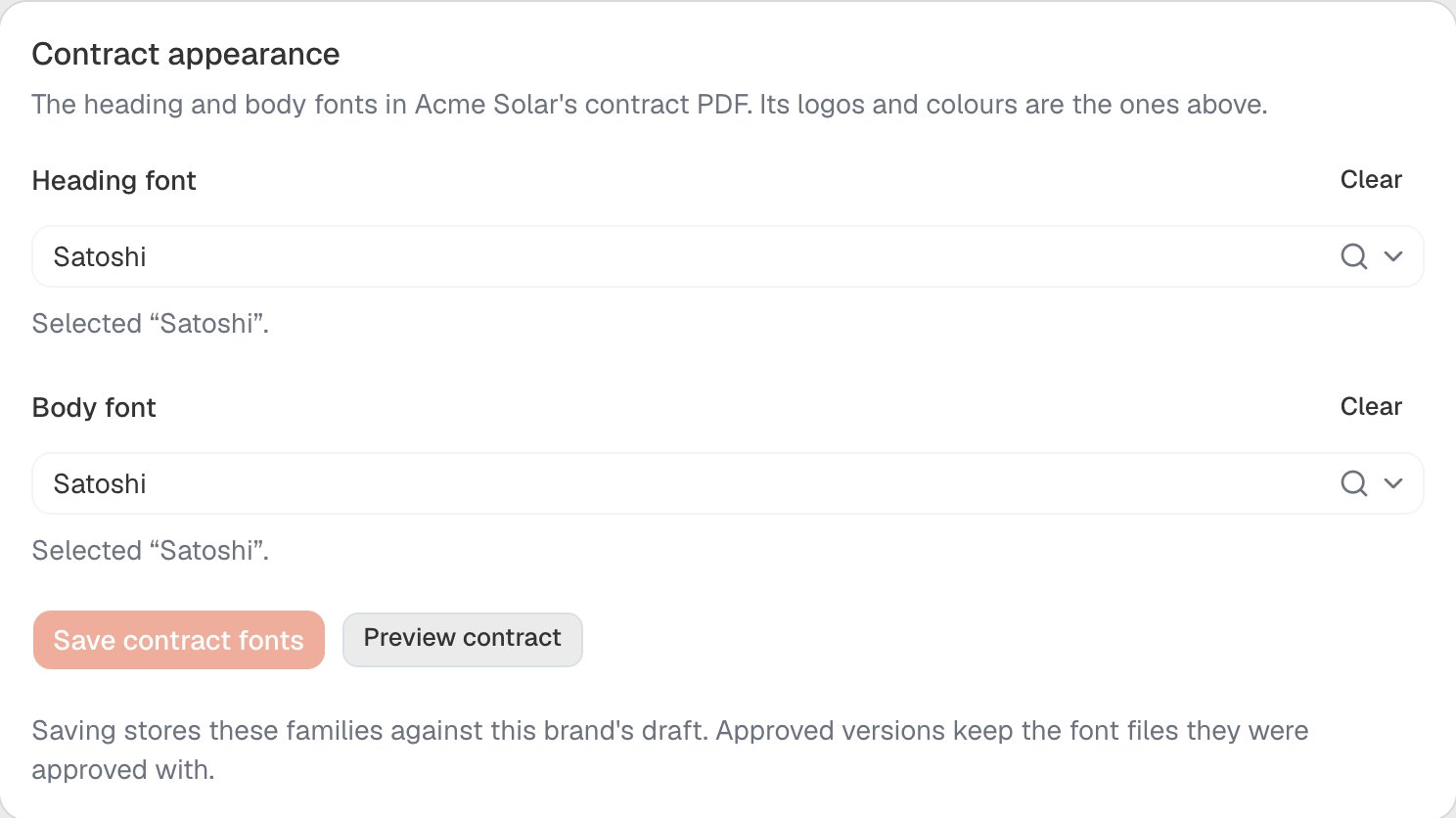
The Contract appearance card on the Branding tab, captured in a synthetic workspace, with a family chosen in each of the two font fields and the save and preview actions beneath them.
Additional-brand fonts are chosen with that brand’s own document, opened from Edit documents on the Selling brands card. For those brands the card points you there rather than offering a second editor for the same value.
Picking a font, including Google Fonts
The font field is a search box. Type at least two characters of a family name and ArcSolar searches Google Fonts for you; families already held for this brand are listed alongside the results as you type, so re-choosing one costs no network call. Choosing a family does three things at once:- it copies all four faces — normal, bold, italics and bold italics — into this brand’s private storage,
- it selects them, and
- it reports “FAMILY: all four faces retained and selected. Save to apply them.”
Preview the branded contract
Preview contract is available on Branding (the Contract appearance card) and on Documents. The preview runs the real renderer against the brand’s saved draft — its logo, colours, retained fonts and agreement wording — so it cannot drift from the contract a customer would receive. The customer and pricing blocks are the labelled layout sample, because a contract preview has no customer or accepted quote behind it.The dialog is titled Contract preview for BRAND and says “A preview is never an approval.” You can choose Render again or Download the PDF.The Selling brands card
Below the appearance cards, the Selling brands card lists the brands and, once multi-brand is enabled, lets you add one:- Edit original documents and Select allowed users on the original brand’s row.
- Enable multi-brand / Disable multi-brand.
- Additional brand name plus Create draft brand.
- Per additional brand: Rename, Products and prices, Edit documents, Copy draft prices, Allow draft preparation, Archive, Select allowed users and Copy brand ID.