

What a selling brand is
A selling brand is the identity your customer is buying from. One brand owns all of these together:The original brand and additional brands
Every workspace has exactly one original brand. It is your own business identity: it uses the workspace logos, colours and fonts you set in Retailer Settings → Branding, its legal details come from ArcSolar Settings, and it uses your existing price book. In a list of brands its name is followed by (default brand). Each brand you add after that is an additional brand. It carries its own price book and its own approved contract document, so it can quote at different prices and under different terms.
Both kinds are edited on the same screen. Retailer Settings edits whichever brand the title row has selected, and every tab follows that choice.
Switch the brand you are editing
- Open Retailer Settings.
- In the title row, on the right, find the box labelled Selling brand.
- Open it and choose the brand you want to edit.
?brand=…, so a link you copy reopens on the same brand.
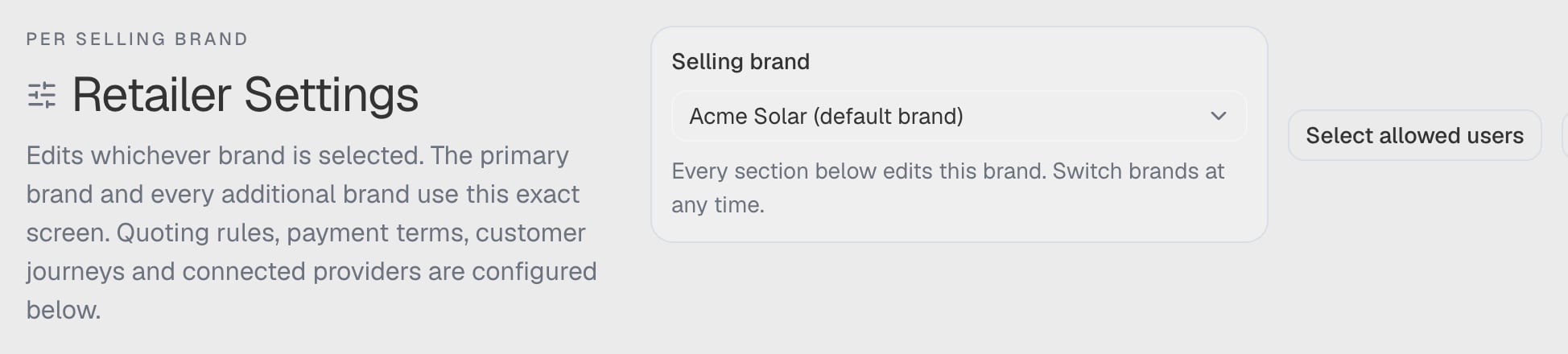
The Selling brand box in the title row of Retailer Settings, with more than one brand available so the box is a control rather than a plain label. Captured from a synthetic workspace.
If you have unsaved work in the section you are leaving, ArcSolar asks before discarding it. Save first if the change matters — switching brand reloads the section for the new brand.
With one brand, there is nothing to choose. When only one brand is available to you, the box shows the brand’s name as plain text instead of a list, with the note “Prices, fees and quote terms below apply to this selling brand.” With more than one brand the note reads “Every section below edits this brand. Switch brands at any time.”
Why an option is greyed out
A brand stays in the list when it cannot be edited: you can see that it exists, but you cannot select it. There are two causes and they need different responses.
If the brand you are looking for is not listed at all, your role does not have it. See Who may use which brand.
If the selected brand becomes unavailable
If a brand is archived or your access to it is removed while you are working, the box keeps showing it as Unavailable selling brand rather than silently moving you onto a different brand, and a line reads “The previously selected selling brand is not available. Choose another to continue.” Choose another brand to carry on. ArcSolar does not substitute a different seller for you, because the next quote would then be issued under the wrong identity.Is the brand ready to sell?
Above the tabs, Retailer Settings reports the quoting minimum for the selected brand. The badge reads either Ready to sell or N of 4 met, and each requirement still outstanding is marked Outstanding:
Everything else — extra logos, custom fonts, finance plans, preview assets — is optional. A brand missing them is fully usable, so ArcSolar never holds back selling over a field that cannot make a quote wrong.
When a brand meets all four, the panel collapses to one line naming the brand and saying it meets the quoting minimum. The readiness report is a convenience, not a permission: the database enforces the same rules when a document is approved and when a quote is priced.
Enable multi-brand
The card that creates and retires brands is called Selling brands:“Use your shared catalogue and CRM with separate selling identities, prices and approved documents.”It appears in two places:
- ArcSolar Settings → Selling Brands — the workspace-wide home for creating and retiring brands.
- Retailer Settings → Branding — the same card, beside the appearance it shares with the original brand.
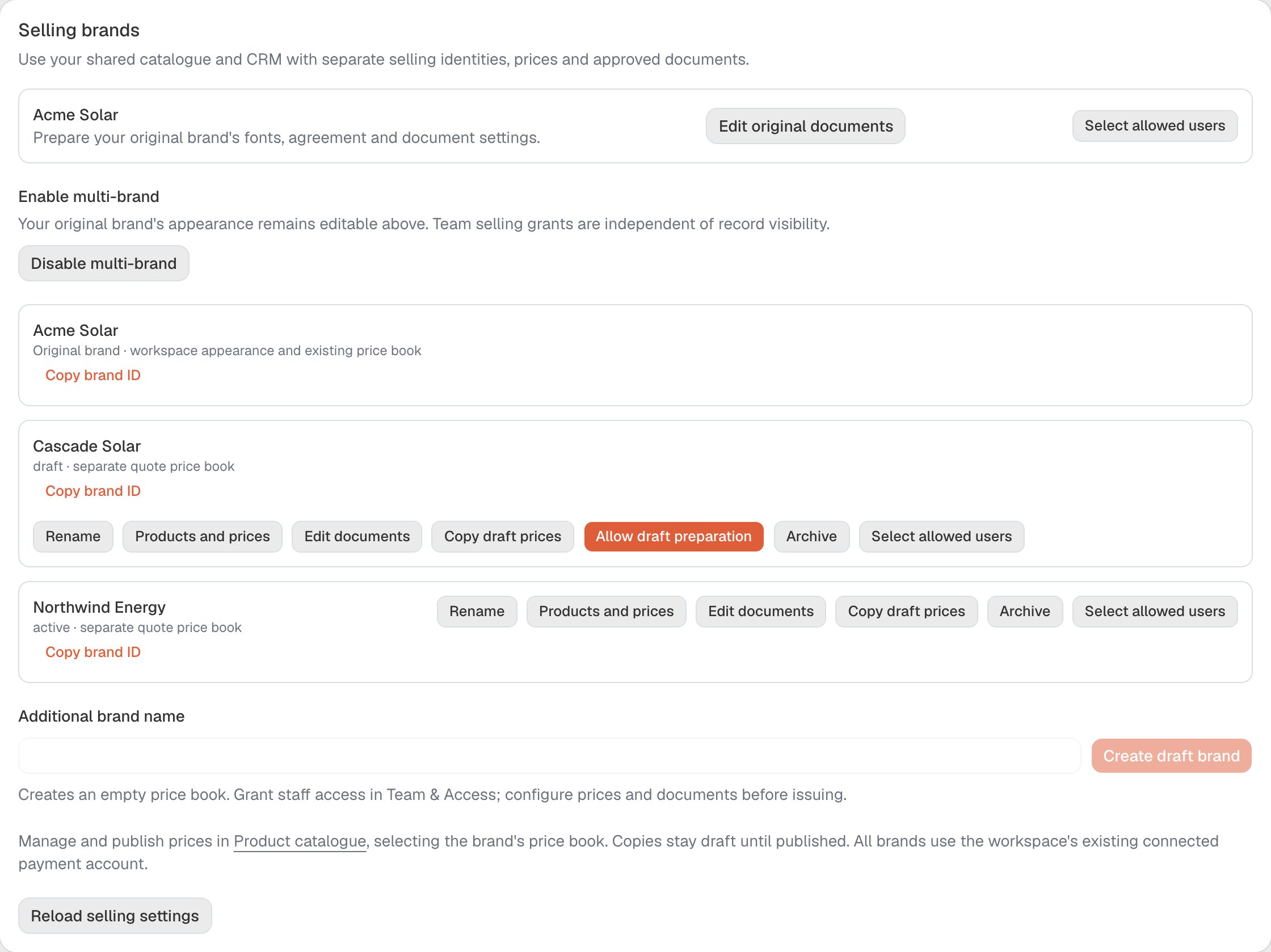
The Selling brands card, captured with multi-brand already enabled in a synthetic workspace: the original brand's row, one additional brand still in draft beside an active one, the multi-brand switch, and the Additional brand name field.
- The original brand’s row says “Prepare your original brand’s fonts, agreement and document settings.” with Edit original documents and Select allowed users.
- Turn on Enable multi-brand. Its help text is “Your original brand’s appearance remains editable above. Team selling grants are independent of record visibility.”
Turn multi-brand off again
Choose Disable multi-brand. The button is unavailable while work is unresolved, and the card says why: “Resolve N additional-brand drafts and M preparing revisions before disabling.” Finish or remove those drafts, then try again.Add an additional brand
- Open the Selling brands card (ArcSolar Settings → Selling Brands, or Retailer Settings → Branding).
- Make sure multi-brand is enabled.
- Under Additional brand name, type the name and choose Create draft brand.
Get the brand to the quoting minimum
Work through the four readiness requirements above, in whatever order suits you:- Products and prices — publish at least one price in this brand’s price book.
- Edit documents — fill in the legal name, trading name and ABN, write the NETCC wording and consent text, and supply both logos.
- Edit documents → its fonts — if you want this brand’s contract to use particular fonts, choose its Heading font and Body font there. The Contract appearance card on the Branding tab belongs to the original brand, not to this one.
- Choose Allow draft preparation, then select the brand in Retailer Settings to confirm the readiness badge reads Ready to sell.
Archive a brand
Choose Archive. The dialog asks Archive NAME? — “This stops new selling under this brand. Historical offers, payments and reporting remain. Resolve its drafts and preparing revisions first.” The buttons are Keep brand and Archive brand. Archived brands stay listed in the Selling brand box so the history stays readable, but they cannot be selected or sold under, and their row keeps only Copy brand ID.Who may use which brand
One setting answers both of these questions, so it is worth keeping them together:- Which brands can this person see and configure on Retailer Settings.
- Which brands can this person sell and issue quotes for.
The live role rule
Four roles sell every brand the workspace has, including brands added later, with nothing to set up:
This is a rule, not a stored list. A brand you create tomorrow is already covered for these four roles, and changing someone’s role takes effect immediately.
Sales and every other role are grant-based: they can sell only the brands explicitly ticked for them. With no brands ticked, the field says “No selling brands selected. This member cannot sell or issue quotes for any brand.”
Selling access is about which brand, not which records. A sales representative’s role and assignments still decide which customers, quotes and projects they can open.
Grant brands to a person
- Open Team & Access.
- Open the member.
- Find the Selling permissions card.
- Tick the brands they may sell, then save. Select all ticks every brand currently offered; Clear removes them all.
Or grant people to a brand
The other direction starts from the brand. Select allowed users — on the Selling brands card, or beside the brand box in Retailer Settings — opens Who may sell BRAND?:“Ticking a member grants this brand only. Their role still decides which records they can see, and every other brand keeps its own list.”This dialog lists people, not brands, and a member whose role already sells every brand is shown as permanently allowed rather than as a checkbox. Both directions write the same list, so a save in one place shows up in the other, and an invitation to a new member can carry the same grants before they accept. An archived brand offers no access control at all — Copy brand ID is the only control left on its row.
![Who may sell Acme Solar? dialog with Select all and Clear above a list of members: [DEMO] Acme administrator shown as Administrator with every brand including ones added later, Priya Raman shown as Sales representative, and Tom Alvarez shown as Operations with every brand including ones added later, over Reload, Close and Save allowed users actions.](https://mintcdn.com/arc-solar/C4qmqaFkCTgR4xQj/images/selling-brands-allowed-users.png?fit=max&auto=format&n=C4qmqaFkCTgR4xQj&q=85&s=f3e9e3f5a1cb747549ff292537b6fb34)
The Who may sell BRAND? dialog, opened from Select allowed users in a synthetic workspace. Each member shows the role that decides which records they can see, and a role that already sells every brand is named rather than offered as a tick box.
What an additional brand can and cannot do today
This is the most important limitation to understand before you invest time in a second brand. An additional brand can hold a price book, a contract document, branding, fonts and its own access list. It cannot yet issue a quote. In the quote builder you can choose an additional brand, and the draft is priced from that brand’s own price book, but Confirm & send is refused. ArcSolar says so in three places:- Under the selling-brand list in the quote: “Draft preparation is available. Sending requires this brand’s approved documents and issuance setup.”
- If you press send anyway: “This selling brand is not ready to issue” — “Resolve selling access, brand setup or the saved recovery copy before sending.”
- If the send reaches the server: “This brand can save drafts. Sending becomes available after its document and issuance setup is ready.”