

Who can open it. The tab follows the administrator-and-developer rule: other roles are sent back to Pricing, so the tab is absent from the strip rather than shown empty. Publishing is narrower still — the workspace owner or a developer can publish.
Who can edit and who can publish
The rule exists because the agreement is a promise the business makes. A draft is never an approval — the page says so under the editor: “Saved draft version: N. A draft is never an approval.”
When you can publish, the editor tells you exactly what a save will do:
“Saving publishes immediately, so this wording is what customers receive. Every save is kept as a published revision below.”When you cannot, you can still edit and save drafts — but the version customers receive is not published until the workspace owner or a developer publishes it.
What the agreement contains
Supplier and contact details
Legal name, Trading name, ABN, Business address, Contact email, Contact phone and an optional Website URL. On the original brand these come from ArcSolar Settings, so the card is read-only apart from the website — “Original legal and contact details come from ArcSolar Settings. Refresh a saved draft after changing those details.” Use Use current organisation details to pull the latest values into the draft. On an additional brand, type them: they are that brand’s own legal identity.Document email sender
Appearance
For the original brand the card points at Branding — “Your original brand uses the organisation logos, colours and contract fonts in Retailer Settings → Branding. Approval captures their current version, so this editor keeps no appearance controls of its own.” For an additional brand you set Primary colour, Secondary colour, Tertiary colour, Logo on light background and Logo on dark background here, because they belong to that brand rather than to the workspace. Fonts for an additional brand are set from the Selling brands card’s Edit documents on the Branding tab; this page links you there.Agreement wording
The heart of the tab:
The Markdown field supports “Headings, paragraphs, emphasis, links and numbered or bulleted lists”; HTML, images, code and templates are not supported. A live preview sits directly under it, so you see the rendered contract as you type, and Replace wording from a .md file imports the field’s content from a
.md file — “Markdown imported into the draft. Save to retain it.”
Where the workspace has older clauses on file, Replace wording with existing JBE clauses copies them into this unapproved draft for you to review.
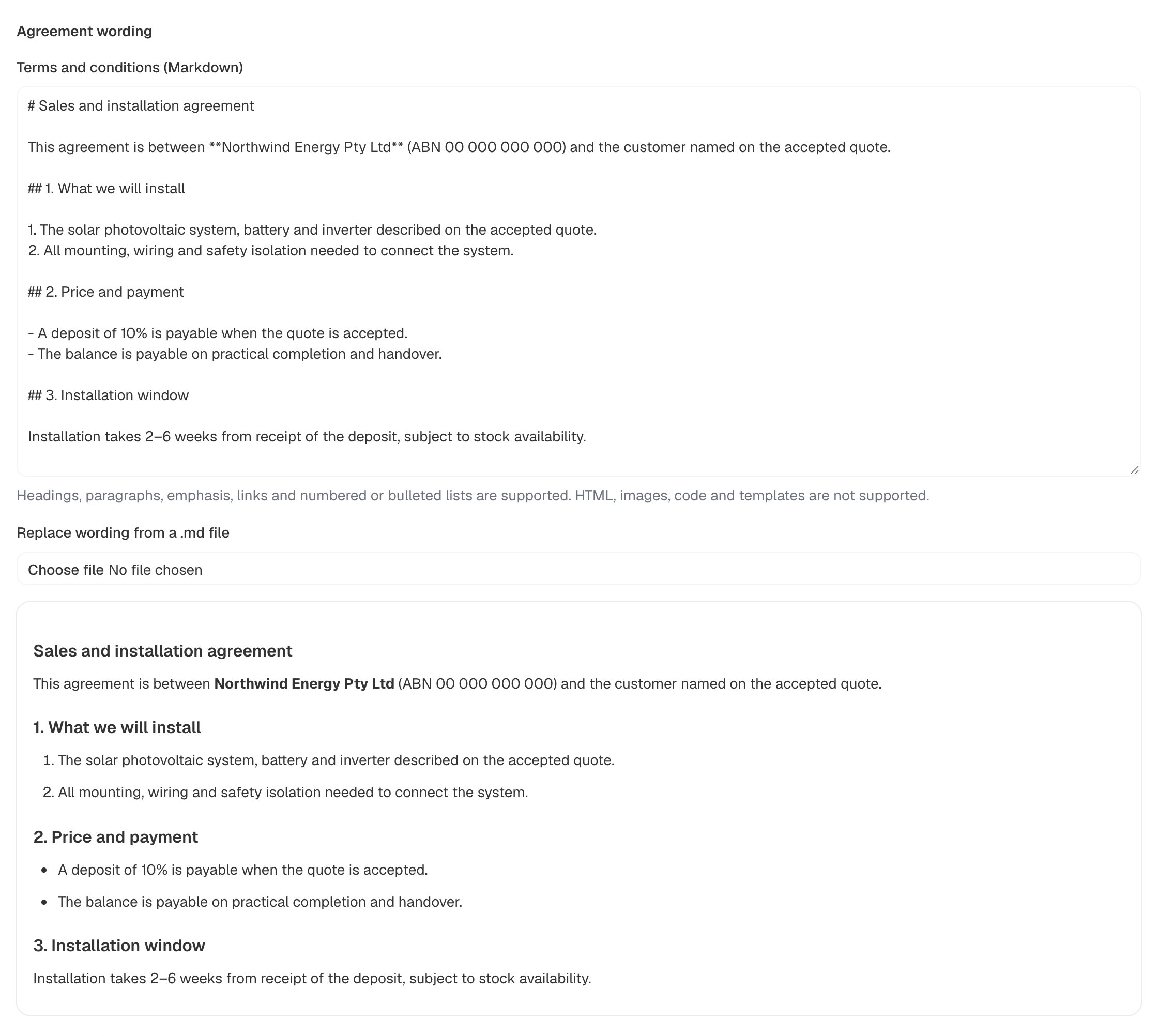
The Agreement wording card on the Documents tab, captured for an additional brand in a synthetic workspace: the Terms and conditions (Markdown) field holds the agreement body, the .md import control sits beneath it, and the rendered wording follows underneath.
Finance terms
Tick Include approved finance terms to write the lender’s actual terms into the contract: Lender legal name, Lender ABN, Lender contact details, Finance terms, Annual interest rate (%), Credit assistance fee (cents), Monthly account fee (cents), Minimum loan (cents), Maximum loan (cents) and Available loan terms (36 to 120 months).“Enter the lender’s actual terms and supported loan range. Finance offers require these details to be approved.”Leave the box clear and the owner’s review reports “Finance offers are unavailable under this version.”
This is not where the deposit and installation terms live. This section is the lender’s approved wording. The deposit limit, stock-delivery payment and installation window are finance settings that apply to every contract — see Finance is the single source of truth.
Save a draft, then publish
The button at the bottom of the editor says what it will do:
Alongside them: Contract preview, Discard edits and reload, and Close in the dialog form.
Saving a draft reports the version it wrote and that it is not yet live: a saved draft reaches customers only once the workspace owner or a developer publishes it.
At the top of the card, one line always states where the brand stands:
If publishing is unavailable
An alert reads Owner status could not be verified — “You can still edit and save a draft, but publishing is unavailable until the page can confirm that you hold owner authority. Reload the page to retry.” The page fails closed: not being able to prove the actor holds the workspace owner’s authority (the owner, or a developer acting under it) is treated the same as not holding it, so no version is published on a guess.How a version is approved
The approval surface is in ArcSolar Settings → Customer documents → Approve brand documents. Administrators prepare drafts in Retailer Settings → Documents, and the workspace owner or a developer reviews the current sources and retains an approved version here. Approval does not enable multi-brand selling or change payment accounts. The flow:- Choose the Selling brand if the workspace has more than one.
- Choose Prepare current draft review. The panel shows the supplier identity, the email sender, the retained fonts, the colours and logos, the payment terms the draft was prepared with, the rendered words, and the lender’s finance terms if present.
- Choose Download direct-payment preview — and Download finance preview when the draft includes finance terms. Open them; the review says “Open it and review the layout, fonts and full agreement before approving.”
- Tick the confirmation, which cannot be ticked until the previews have been downloaded:
“I have reviewed the downloaded previews and confirm this supplier identity, assets, agreement and payment terms are authorised for this brand.”
- Choose Approve this document version. Success reads “Document draft N approved and retained.”
Revision history and restoring a version
Published revisions lists “every version published for BRAND, newest first”, each row showing Draft N · date and Published by NAME. Its description states the important property:“Restoring an earlier version publishes it as a new revision, so this history is never rewritten.”To go back:
- Choose Restore this revision on the row you want.
- Read the confirmation: “The selected version is saved as the current draft and published as a new revision. Earlier revisions stay in the history, and customers receive the restored version once it is published.”
- Choose Restore and publish — or Keep current version to back out.
Preview the branded contract
Contract preview sits with the editor and on Branding. It renders the brand’s saved draft — its logo, colours, retained fonts and agreement wording — through the real contract renderer, and the dialog states “A preview is never an approval.”![Contract preview for Acme Solar dialog describing the render, above a PDF viewer at page 1 of 6 showing the DRAFT PREVIEW synthetic customer and amounts banner, the unsolicited-sale notice, the supplier block for [DEMO] Acme Solar Pty Ltd, a sample customer and installation address, and a footer reading Draft version 3, not approved, with Render again, Download and Close below.](https://mintcdn.com/arc-solar/C4qmqaFkCTgR4xQj/images/selling-contract-preview.png?fit=max&auto=format&n=C4qmqaFkCTgR4xQj&q=85&s=547bf21e01bd69a1bbbc5001ac946dbb)
Contract preview for a brand in a synthetic workspace, showing the rendered PDF inside the dialog with the synthetic customer and amount banner, the preview footer stamp, and the Render again and Download actions.
Finance is the single source of truth
Three numbers on every direct-payment contract come from Retailer Settings → Finance & deposits, not from the document:- the deposit limit as a percentage of the customer balance,
- the stock delivery payment percentage, and
- the installation window in weeks.
“N–N weeks from receipt of the deposit and/or Solar Victoria approval, subject to stock availability.”Keep that sentence’s meaning in mind if you shorten the window: the phrase is part of the wording the customer accepts. See Finance and deposits for the fields, and Prices per brand for what sits behind the amounts.
When the tab has nothing to show
Before you approve a version
- The legal name and ABN are exactly right. They appear on the customer’s contract and receipt.
- The trading name is the name customers know the business by.
- A logo is present for both backgrounds, in case any part of the document prints on the other one.
- The unsolicited-sale notice is filled in if it applies.
- The installation window on the preview matches what your Finance settings say, because that is what the next quote will promise.
- The finance terms match the lender’s current offer, if finance is offered at all.