

You enter sell prices. ArcSolar doesn’t add a margin for you.
1. Set your quote rules
Open Retailer Settings → Pricing & fees.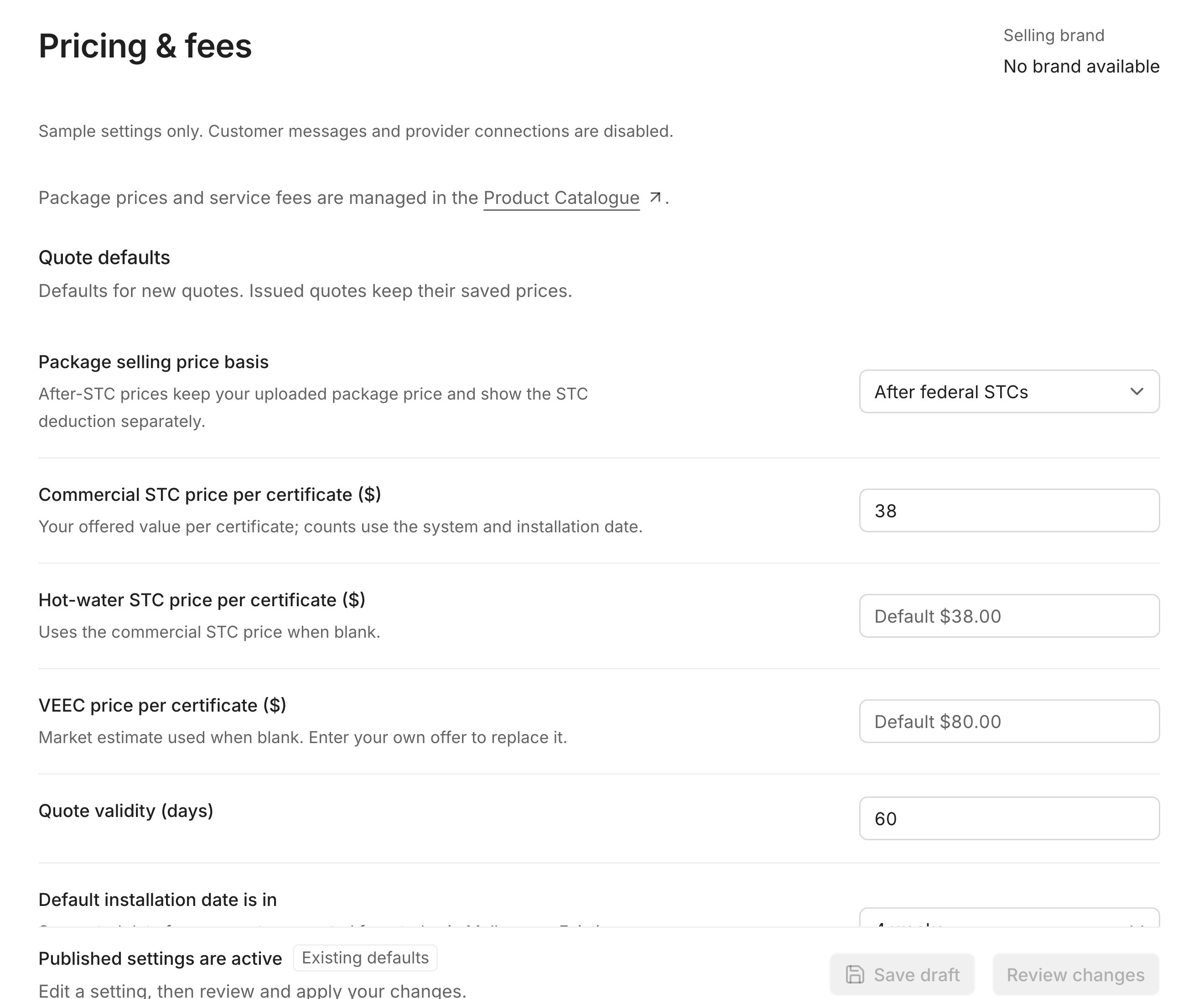
Pricing & fees. Sample data.
When you’re done:
- Select Save draft.
- Select Review changes.
- Choose Apply immediately or Schedule a start time.
2. Add your products and prices
Open Product Catalogue. You can add products one at a time with Add product, or import them all at once.Import from a spreadsheet
1
Open the import
Select Import Products. If you can’t see it, open Tools first.
2
Download the template
Select Download typed XLSX template. Excel works best. CSV also works.
3
Fill in your products
One product per row, on the Products sheet. Each product needs a unique
sku.To add a price, fill in price_book, amount_aud, tax_inclusive and effective_from (a date).4
Choose draft or live
Prices import as drafts. Set
publish_price to TRUE to make them live straight away.5
Upload and import
Choose your file. Fix anything listed under Fix the file before importing, then select Import Products.
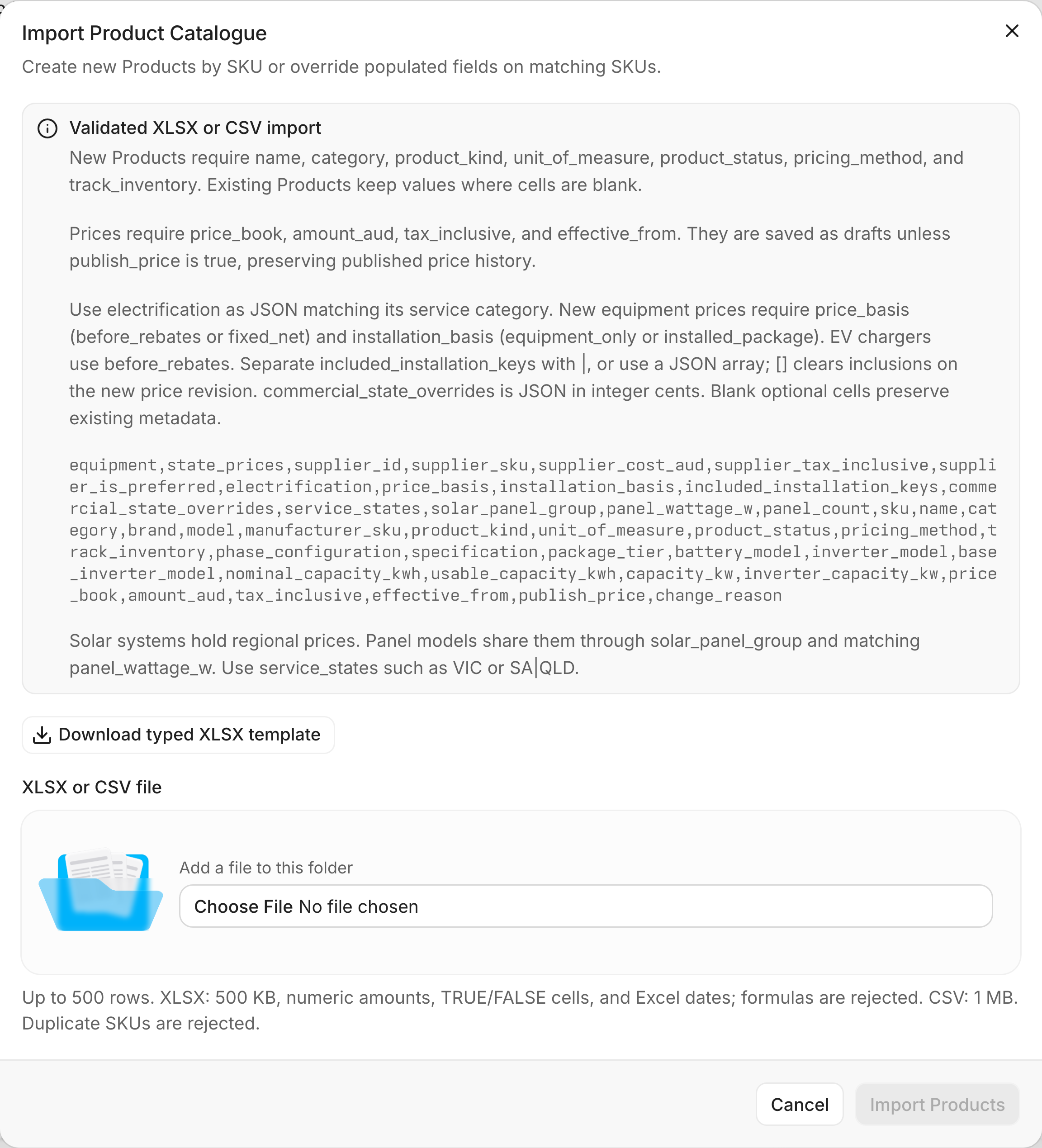
Import Product Catalogue. The box lists every column the file can use.
- Use real numbers,
TRUE/FALSEand Excel dates. Formulas are rejected. - Importing a
skuthat already exists updates that product. Blank cells keep the old value. package_tiercan beessential,just_better(shows as Plus),proorultra.- Use
upon_requestinpricing_methodfor items you price case by case. Leaveamount_audblank for those.
3. Check every product is priced
In the catalogue, look at Pricing status:
If you sell under more than one brand, each brand has its own prices. See Prices per brand.
Changing prices later
When you save a new price, choose Set price now or Schedule for a date.- New quotes use the new price.
- Sent and accepted quotes keep their original price.
- A draft quote made before the change can’t be sent until you reload and review it. ArcSolar shows: This brand’s prices changed. Reload and review the quote before sending.
Who can change pricing
See Roles and permissions.