

Read that label before you change anything. If the label says Per selling brand, your change applies to the brand named in the Selling brand box — not to every brand, and not to you.
Retailer Settings — per selling brand
“Edits whichever brand is selected. The primary brand and every additional brand use this exact screen. Quoting rules, payment terms, customer journeys and connected providers are configured below.”
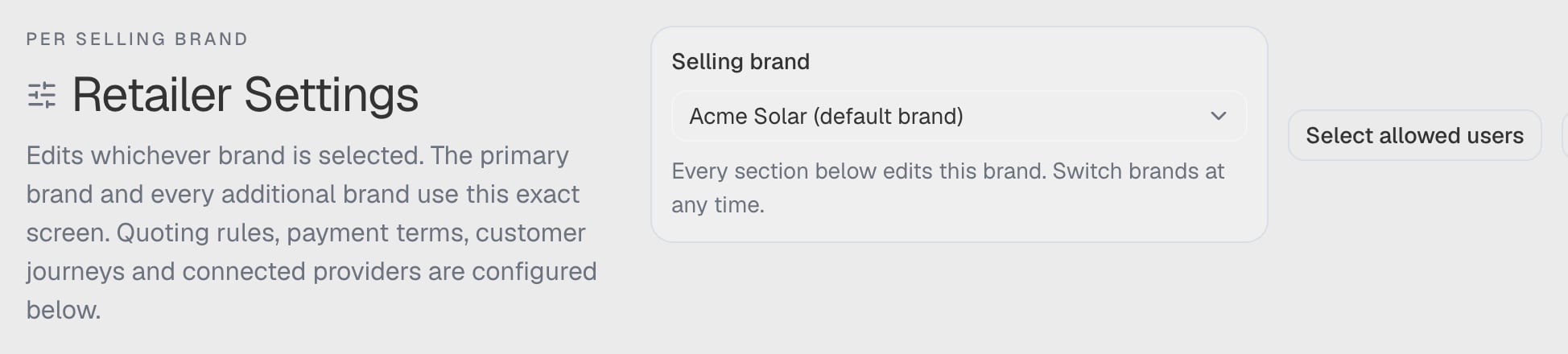
Retailer Settings under its Per selling brand label, captured in a synthetic workspace, with the Selling brand box showing the brand that every tab below is currently scoped to.
The Selling brand box in the title row decides which brand all of this applies to, and the readiness panel above the tabs reports that brand’s quoting minimum to administrators and developers. Some tabs are absent for some roles — Branding and Documents are administrator-and-developer screens, and Services & fees appears only while the service catalogue is unavailable.
Go here for: prices and fees, deposit and installation terms, the customer SMS wording, the customer-facing branding, the agreement, and which providers are connected for a brand.
ArcSolar Settings — per workspace
“Platform administration for the organisation. Administrators and owners only — nothing here is per brand or per person.”
Each tab is present only when it applies to you, so a tab you cannot use is absent rather than empty. Customer documents follows the owner-or-developer rule, and Selling Brands needs an administrator or developer. Refunds and rebate settings live under their own screens rather than here.
Go here for: the business’s legal identity, the numbers the workspace uses, billing, adding or archiving a selling brand, and approving a brand’s document.
Selling Brands sits here rather than in Retailer Settings, and that is deliberate: creating or retiring a commercial identity changes the workspace, while editing one brand’s terms does not. The same card is also shown on Retailer Settings → Branding for convenience — both edit the same thing.
Profile Settings — per person
“Each user manages their own account. Nothing here changes what anyone else sees or can do.”Three tabs — Profile, Appearance and Notifications:
Go here for: anything about you. A colleague cannot change these for you, and you cannot change theirs.
More interface preferences sit in the header, not here. The Preferences panel in the top bar also controls theme presets, interface fonts, navbar behaviour, page layout and sidebar style. Profile Settings → Appearance holds the theme and the contrast switch specifically. All of them are personal to you.
Where did the old Settings tabs go?
Three sections that used to be tabs of Settings now live on Profile Settings, and older links still work:
If a bookmarked link or an email footer sends you to an old tab, it will open the right screen rather than an empty frame.
A quick way to decide
- Is it about one brand selling on its own terms? Retailer Settings, with that brand selected in the Selling brand box.
- Is it about the business itself, or which brands exist? ArcSolar Settings.
- Is it about you? Profile Settings.